How to Create a Channel D Account
Channel D — How To Create Channel D Account
Document purpose: Clear, step-by-step internal KB for creating Channel D accounts and supporting onboarding for dental practices. Use this as the primary reference when creating new accounts, troubleshooting device compatibility, and handing off materials to support or operations.
1. Quick Overview
Channel D is a marketing and educational video system for dental practices. It delivers short, silent, animated videos tailored for reception areas and treatment rooms. This KB covers account creation, supported devices, basic troubleshooting, photo/file placeholders, and handoff checklist.
2. Account Creation: Step-by-step
Follow these steps when creating a new Channel D account for a practice.
Open the Channel D login page (use the official sign-up URL provided in onboarding resources).
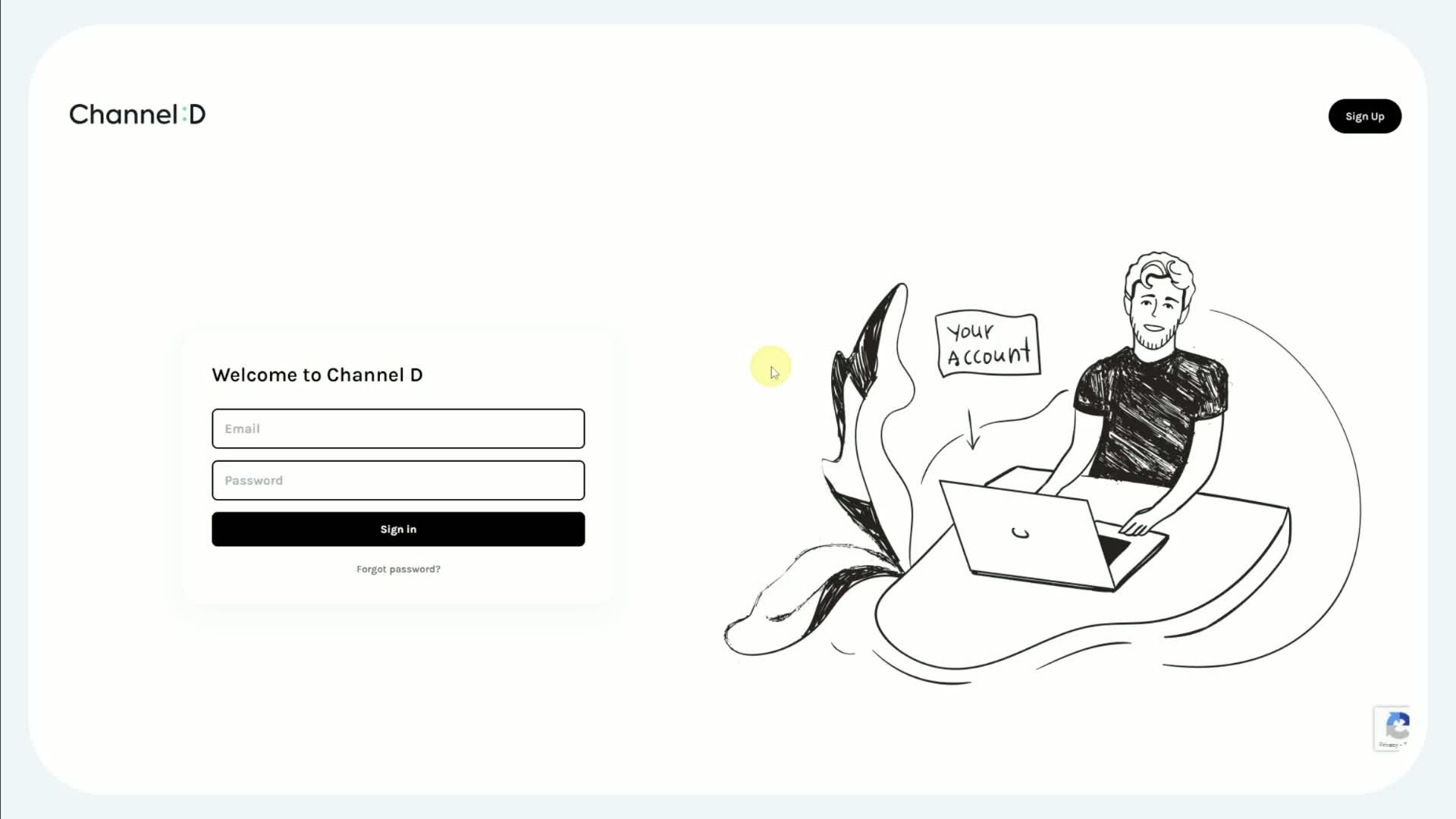
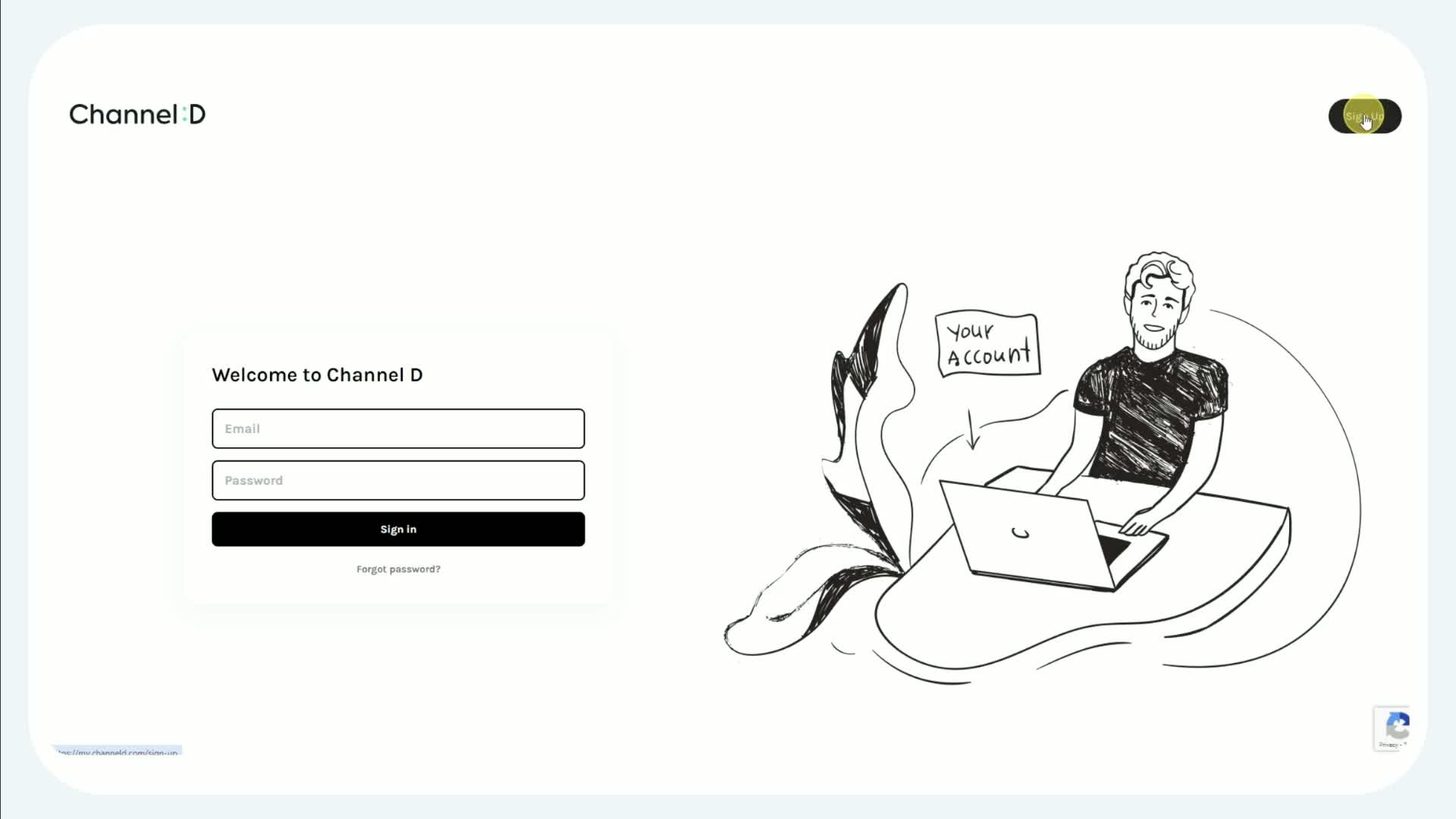
Click Sign Up (upper-right corner).
Complete the sign-up form:
Email address - primary contact for the practice.
Practice name - official clinic name.
Contact name - primary contact person.
Device type - choose one of: Smart TV, Dongle, or I'm Not Sure.
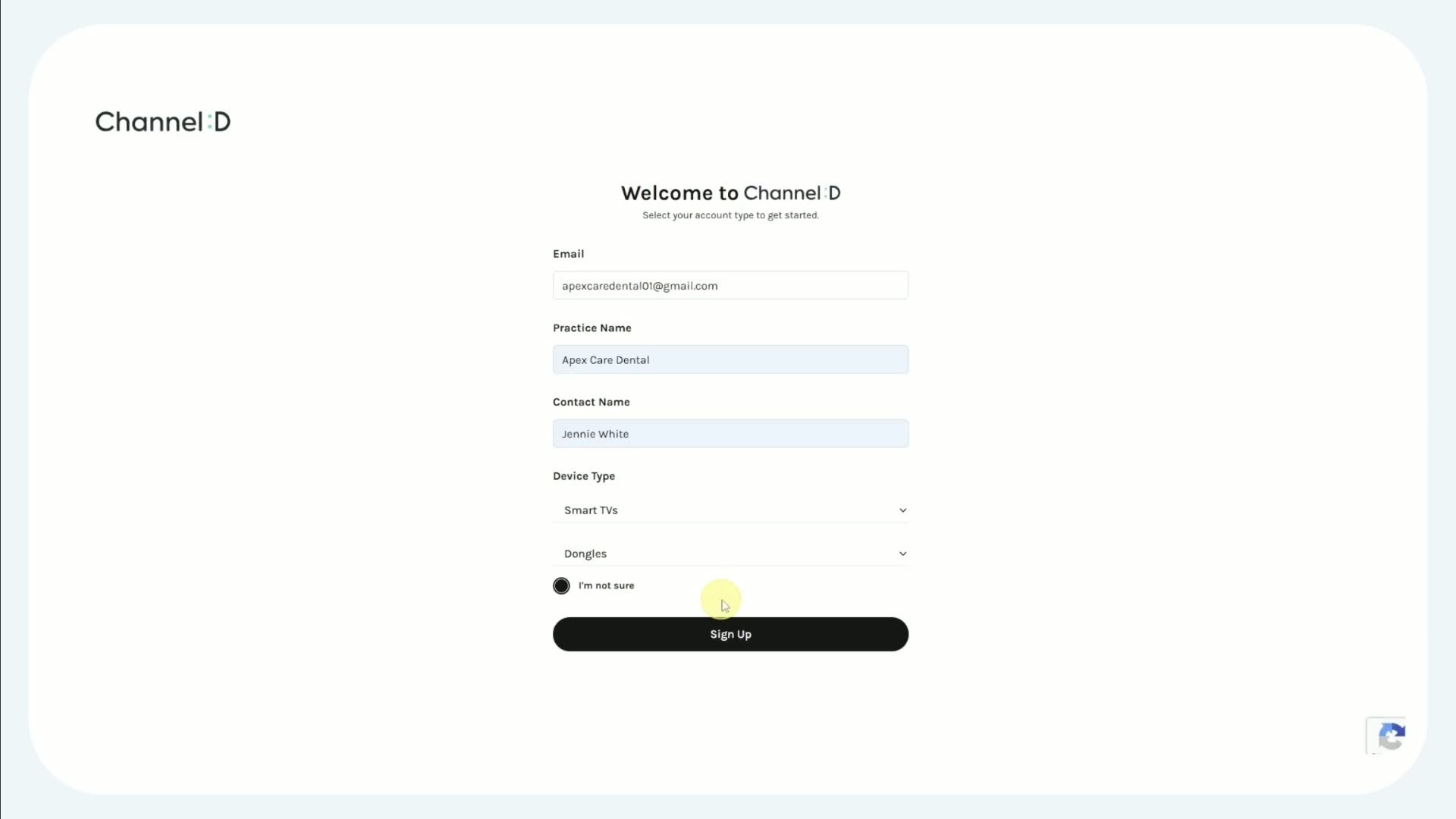
Confirm the data and click Sign Up.
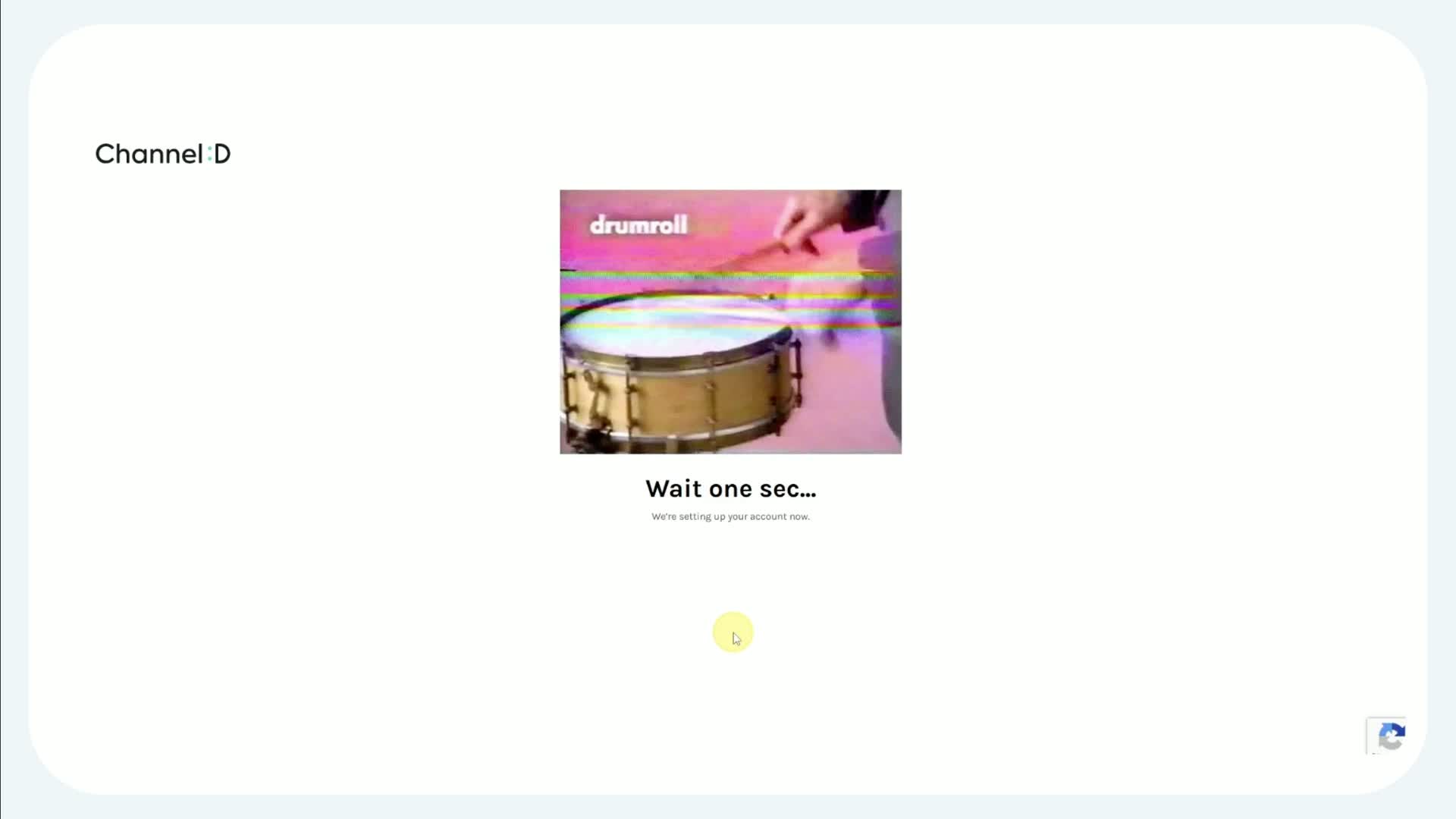
Wait a few seconds, a drumroll gif will appear while creating your account. The dashboard will appear when the account is created.
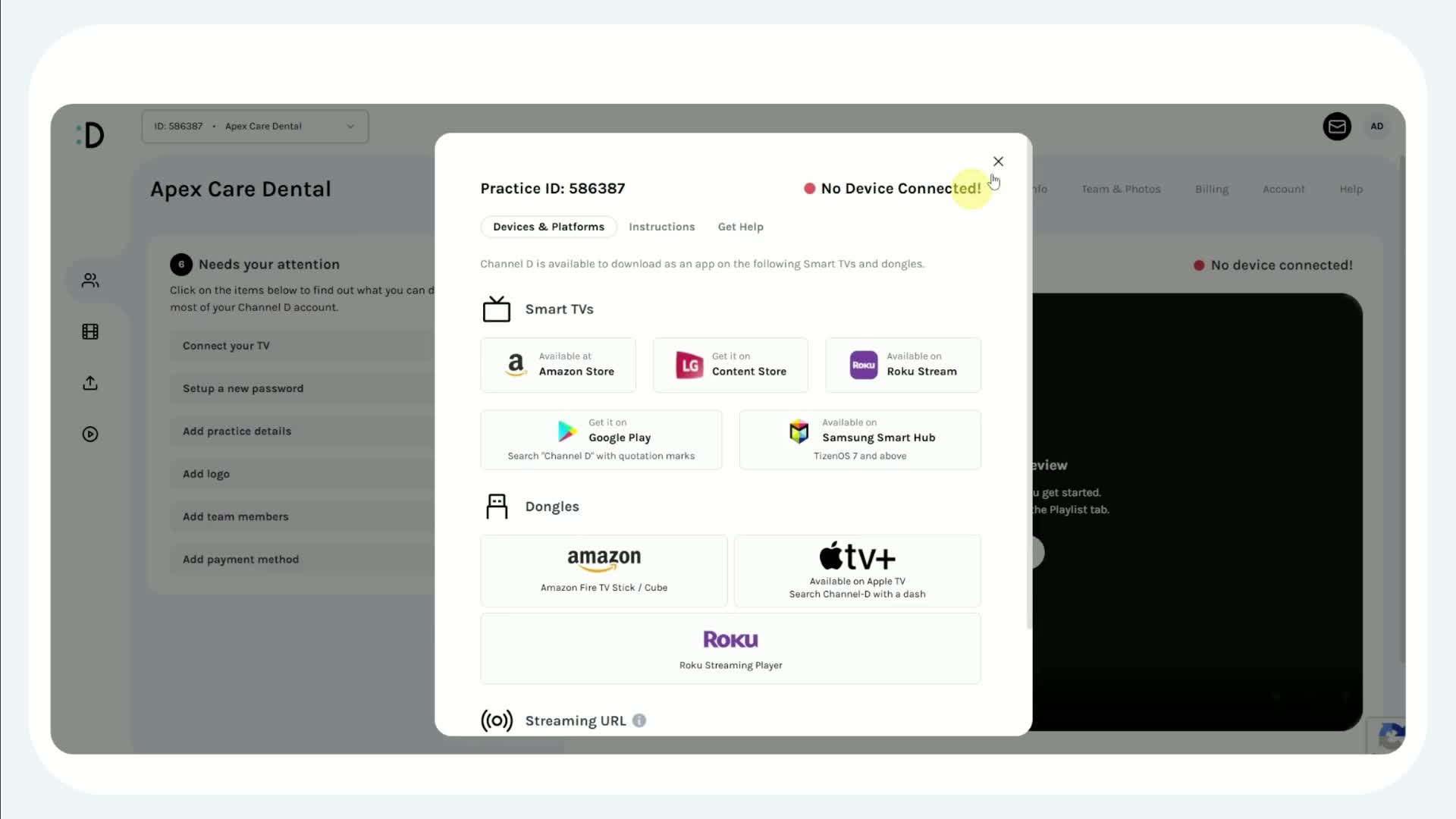
Confirm account creation by checking the dashboard and sending a welcome message to the practice contact.
Notes:
If the customer selects I'm Not Sure, follow up to confirm the specific device later.
Use a consistent naming convention for practice accounts (e.g., PracticeName — Location).
3. Supported Devices
Use the table below when advising clients about device compatibility.
Category & Supported Devices / Platforms
Smart TVs
Amazon Fire TV (smart TV OS), Android TV, LG webOS, Roku TVs, Samsung (Tizen OS 7+)
Dongles / Streamers
Apple TV, Amazon Fire TV Stick, Google TV / Chromecast with Google TV, Roku Streaming Stick / Express
Minimum requirements:
Samsung TVs must be running Tizen OS 7 or higher.
4. Post-Setup Steps (Onboarding)
Verify that the dashboard loads and shows the practice name.
Provide the practice with a short welcome note that includes:
How to play videos in waiting rooms (basic instructions)
Contact for support (support@channel-d.example or internal channel)
Schedule a follow-up call if the device selection was "I'm Not Sure".
Add the account to the internal tracking sheet and assign ownership in the support system.
5. Troubleshooting: Common Issues & Fixes
Dashboard not loading after signup
Ask the user to wait 10–15 seconds and refresh.
Confirm browser compatibility and clear cache.
User selected wrong device type
Update device selection in the dashboard or ask the practice for their exact hardware and update the account.
TV not supported (old Tizen version)
Advise on upgrading TV firmware if possible, or recommend a supported dongle (e.g., Fire TV Stick, Roku).
Playback issues on device
Confirm network connectivity and streaming permissions.
Check for software updates on the device.
7. FAQ
Q: How long does account creation take?
A: The account is created immediately after sign-up; the dashboard typically appears within a few seconds.
Q: What if the practice uses an unsupported TV?
A: Recommend a simple dongle (Fire TV Stick or Roku) and offer basic setup guidance.
Q: Who receives the welcome email?
A: The contact email used at sign-up. CC the internal account owner in the support system.