Adding Multiple Practices and Managing Playlists in Channel D
Part A: Adding a New Practice
Step 1: Log In to Channel D
Open a web browser (Chrome is recommended for best performance).
Go to the official Channel D website.
On the login page:
Click Sign In.

You will be directed to your corporate dashboard.
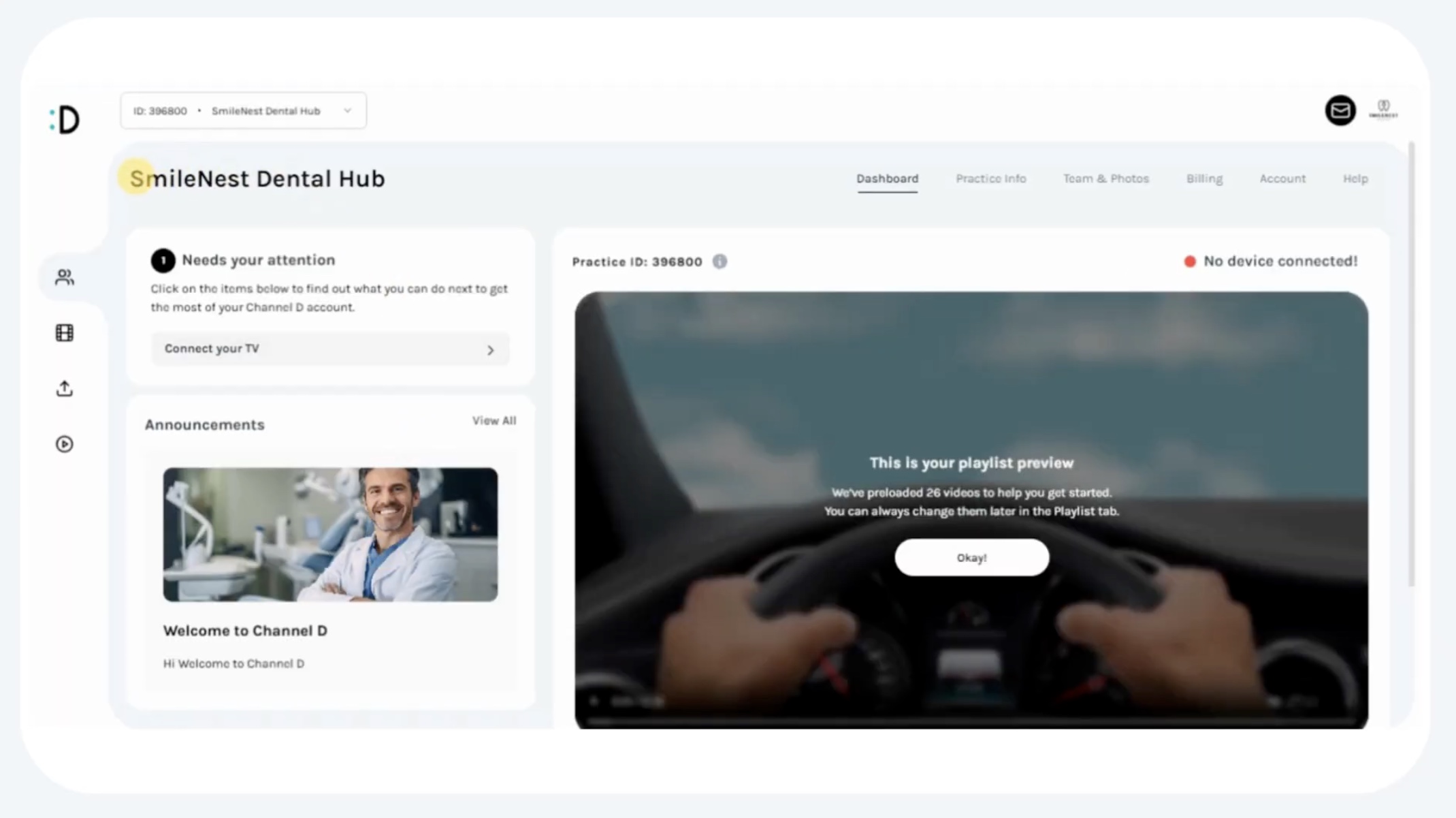
Note: If you forget your password, click Forgot Password to reset it before proceeding.
Step 2: Access the Practice Management Menu
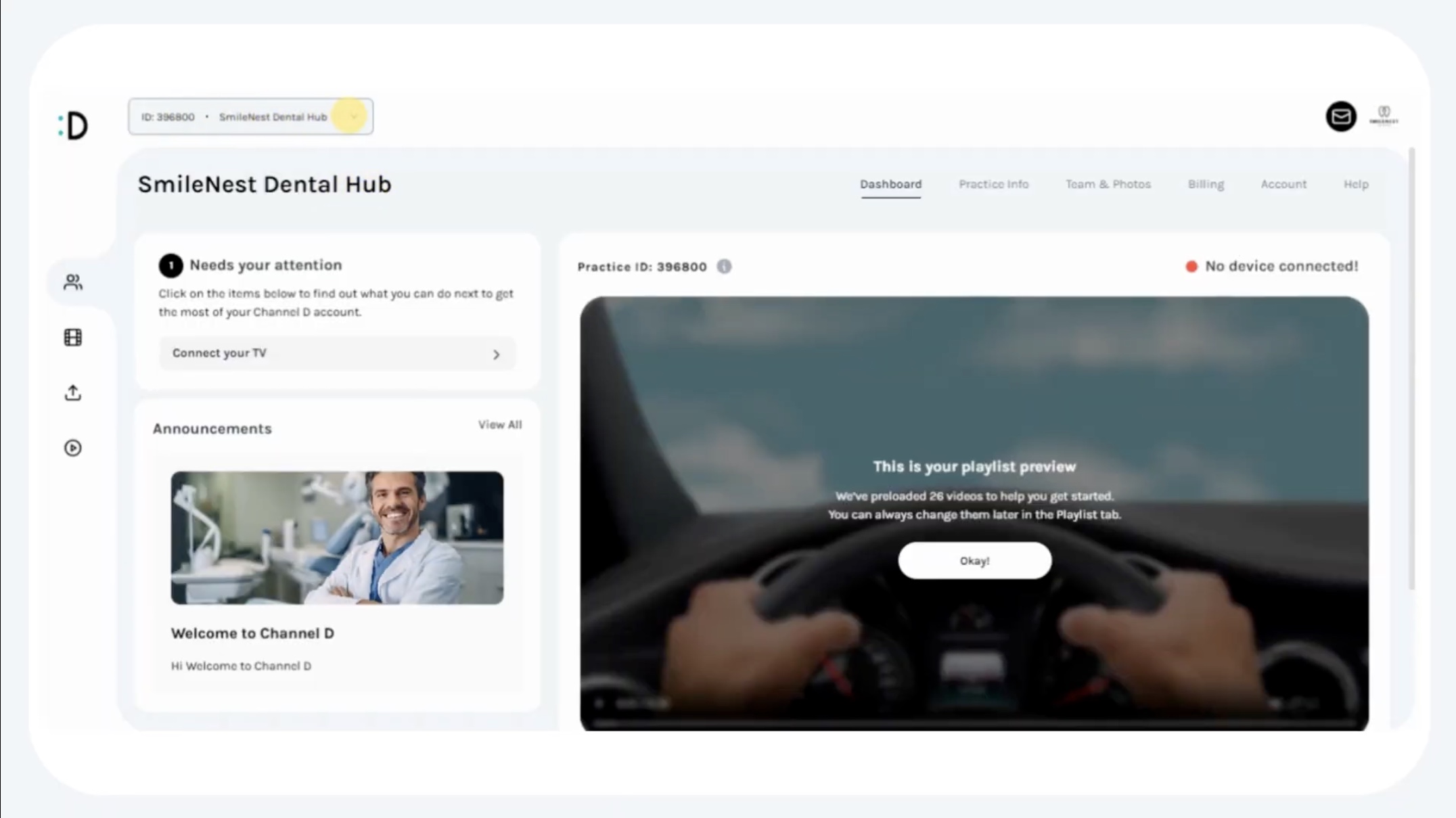
On the top-left corner of your dashboard, locate the practice name drop-down menu.
Click the drop-down arrow to expand the list of practices.
Select Add a New Practice from the list.
Step 3: Enter New Practice Details
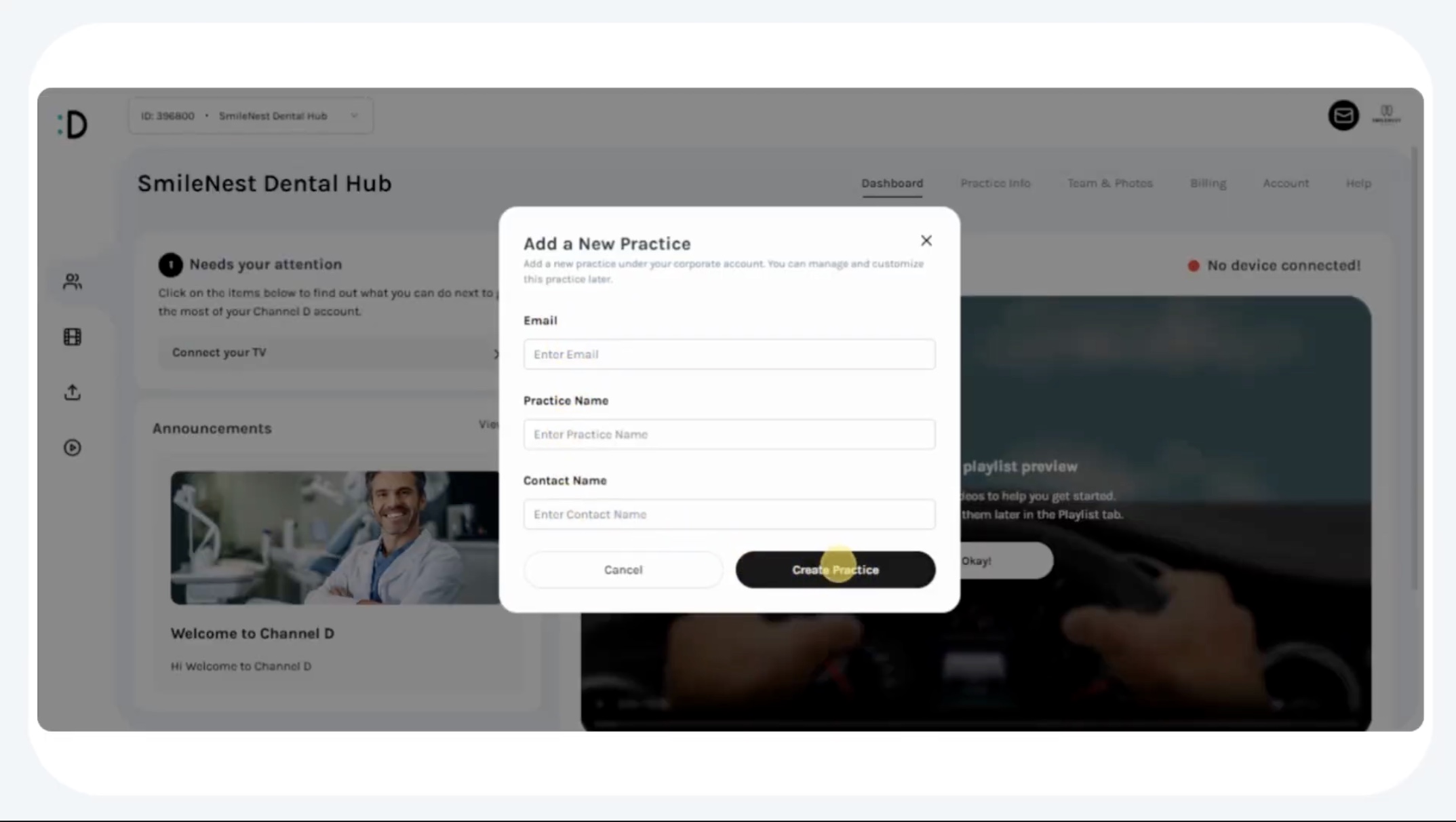
A pop-up form will appear.
Complete the required fields:
Double-check for accuracy:
Once verified, click the Create Practice button.
Step 4: New Practice Activation
The new practice will be created instantly.
A 7-day free trial will begin under your corporate account.
The practice will have its own:
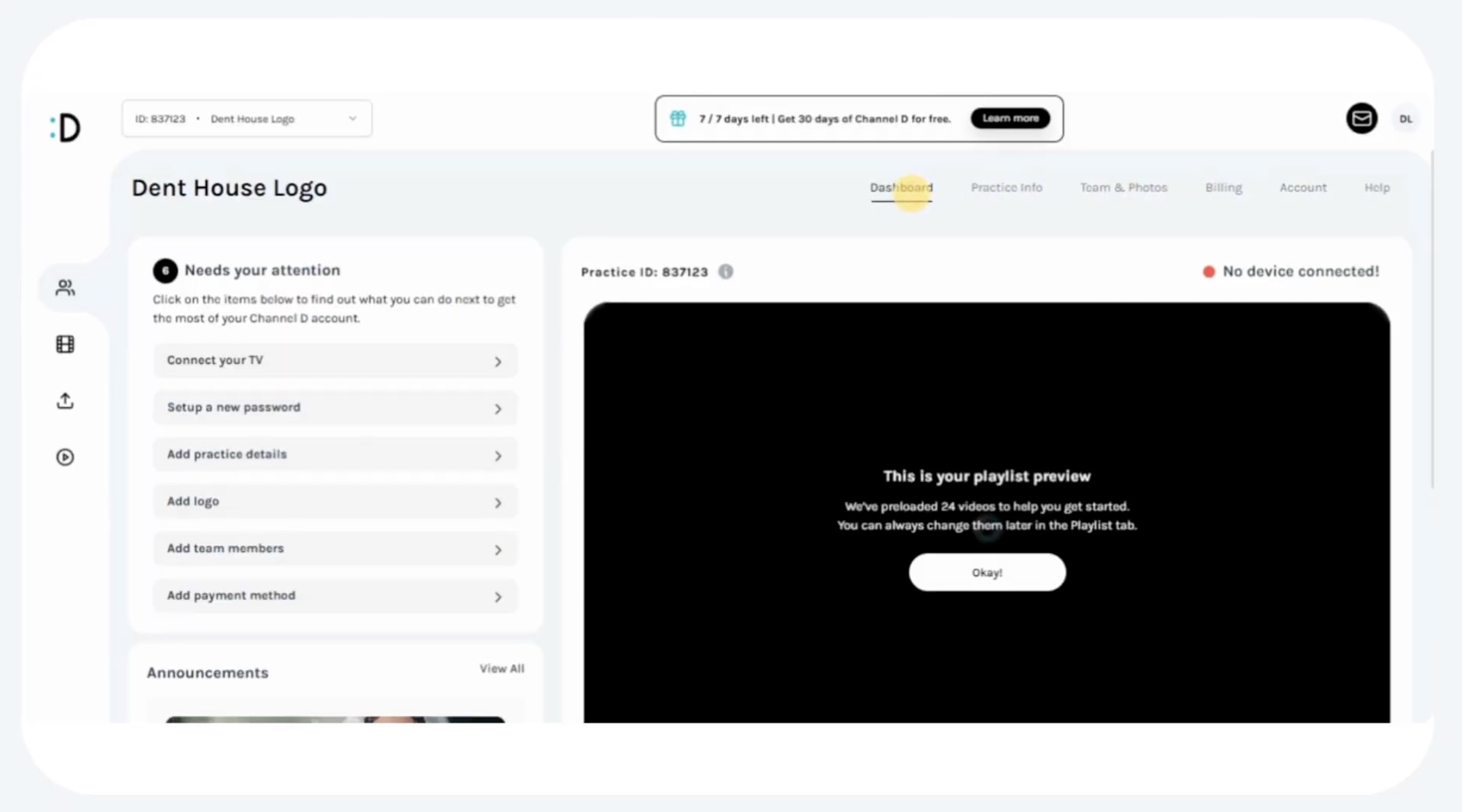
Note: The corporate account holder retains central oversight of all practices, but each practice functions independently.
Step 5: Practice ID Assignment
Each new practice is automatically assigned a unique Practice ID.
The Practice ID is required for:
Record this Practice ID in your corporate records for reference.
Tip: Keep a master list of all practice IDs to streamline support and troubleshooting.
Part B: Managing Playlists
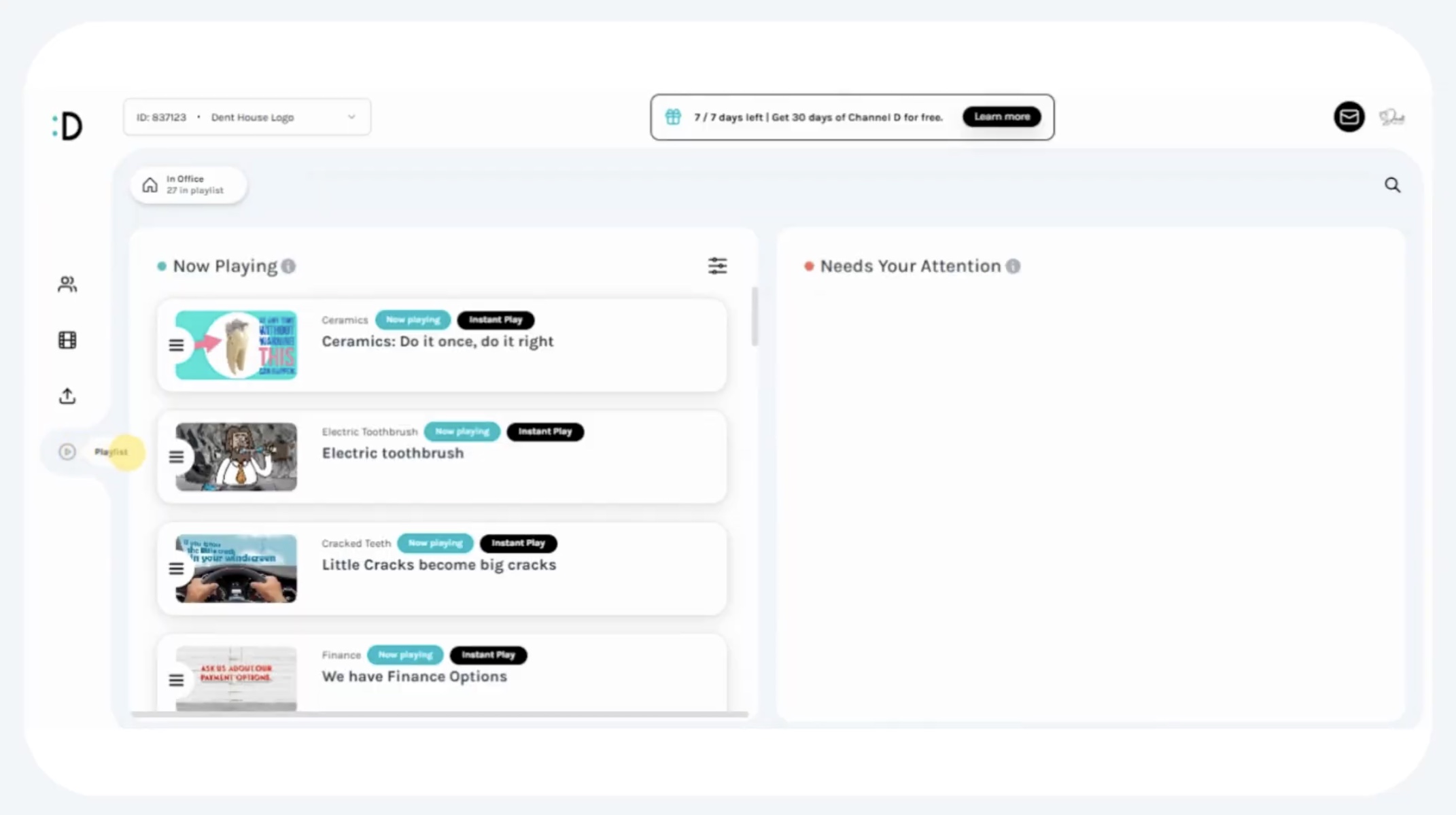
Step 1: Access Playlist Settings
From the practice dashboard (not the corporate dashboard):
You will be taken to the Playlist Management screen.
Step 2: Review “Now Playing” Section
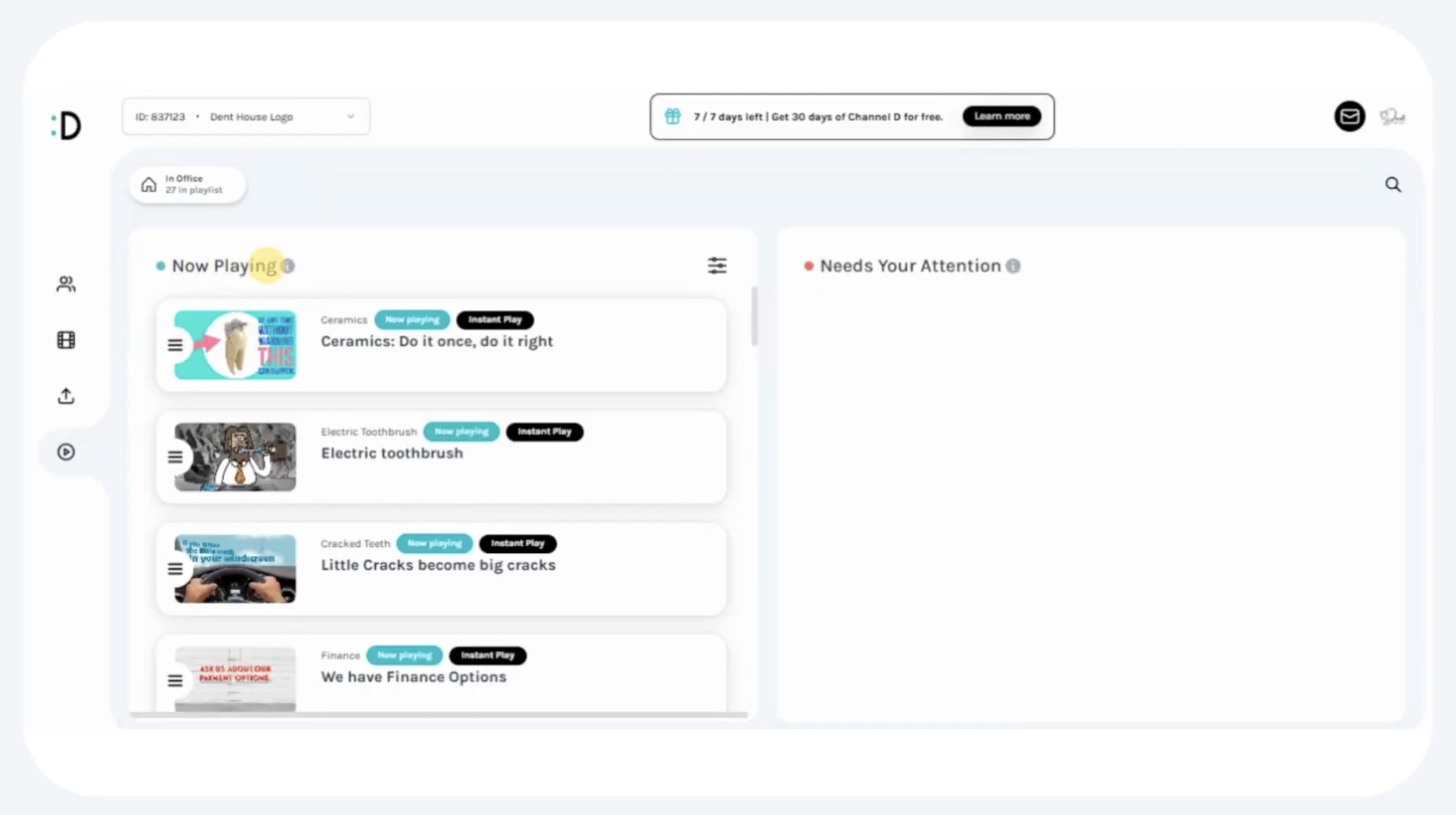
At the top of the playlist tab, you will see the Now Playing section.
This displays the list of videos currently scheduled to play at the practice.
Review the order and confirm if the active playlist matches the desired sequence.
Step 3: Rearrange Playback Order
To change the order of videos:
Once the sequence is set, click Save Changes.
A confirmation pop-up will appear → click Confirm.
Your playlist updates will be applied immediately.
Best Practice: Always review the final order after saving to ensure the changes were applied correctly.
Step 4: Use Playlist Filters
In the Playlist section, you can refine your view using filters:
Use filters to quickly identify which videos are available, in progress, or live.
Step 5: Monitor Video Production Status
Videos labeled In Production are not yet available for playback.
These videos are typically:
Expect availability within 24–48 hours.
Once available, they can be added to your playlist immediately.
Part C: Best Practices for Multi-Practice Management
Consistency: Keep naming conventions uniform across practices (e.g., “Practice – City Name”).
Customization: Tailor each practice’s playlist to reflect its patient demographics.
Oversight: Corporate accounts should regularly audit playlists to ensure quality control.
Recordkeeping: Maintain a log of each practice’s Playlist IDs and assigned admins.
Communication: Notify practice admins when new videos are released to ensure adoption.
Key Notes