How to Upload your Own Photos and Add them in your Playlist
Uploading Your Own Photos and Adding Them to Playlists in Channel D
Purpose
This SOP provides detailed instructions on how to upload photos into Channel D, configure their display settings, and add them to playlists for playback.
Scope
This procedure applies to:
Corporate account holders
Practice administrators
Authorized team members responsible for content management
Procedure
Part A: Uploading a Photo
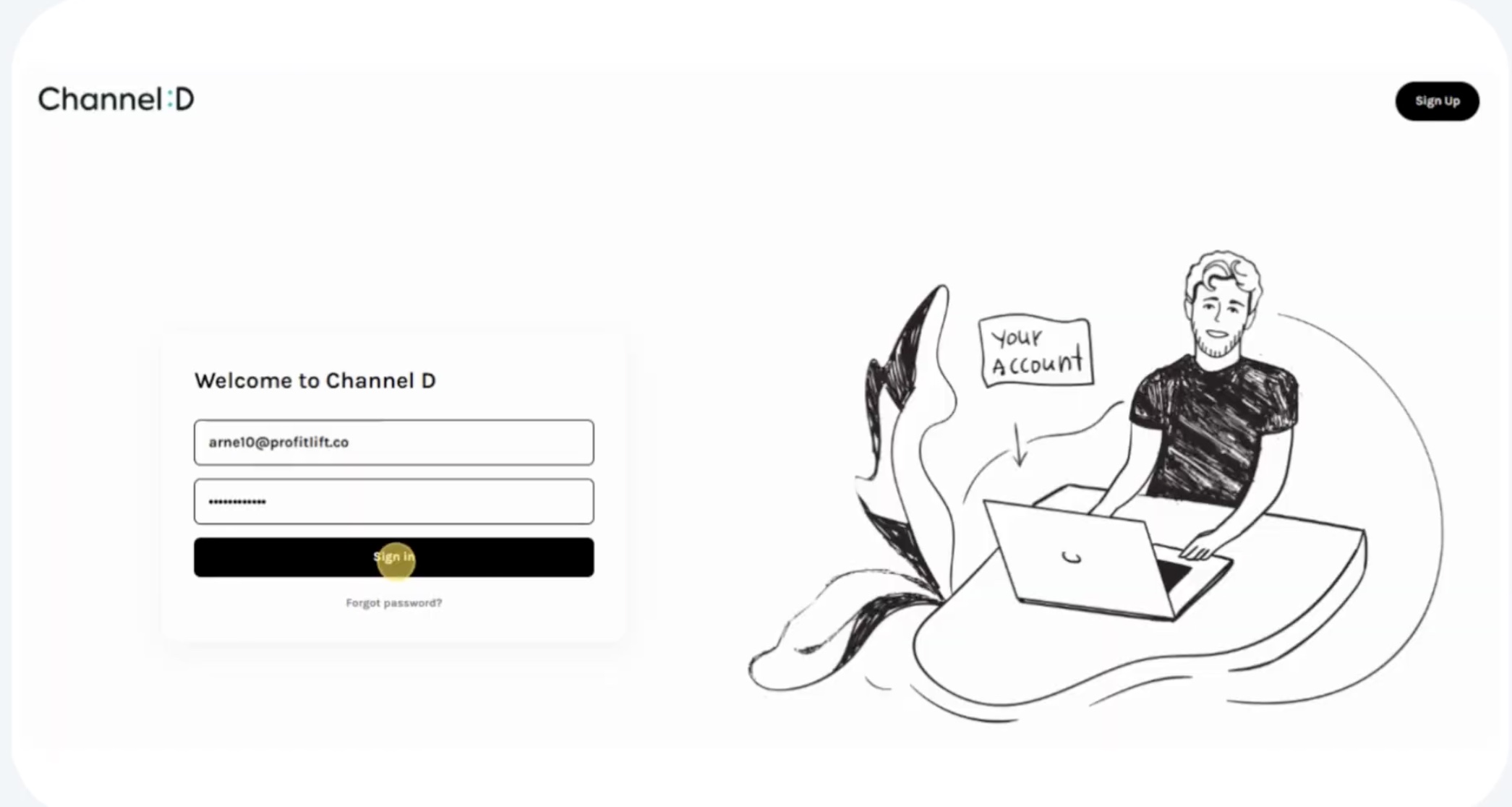
Step 1: Log In
Open a web browser (Chrome recommended).
Navigate to the Channel D website.
Enter your email and password.
Click Sign In to access your dashboard.
Step 2: Go to the Uploads Page
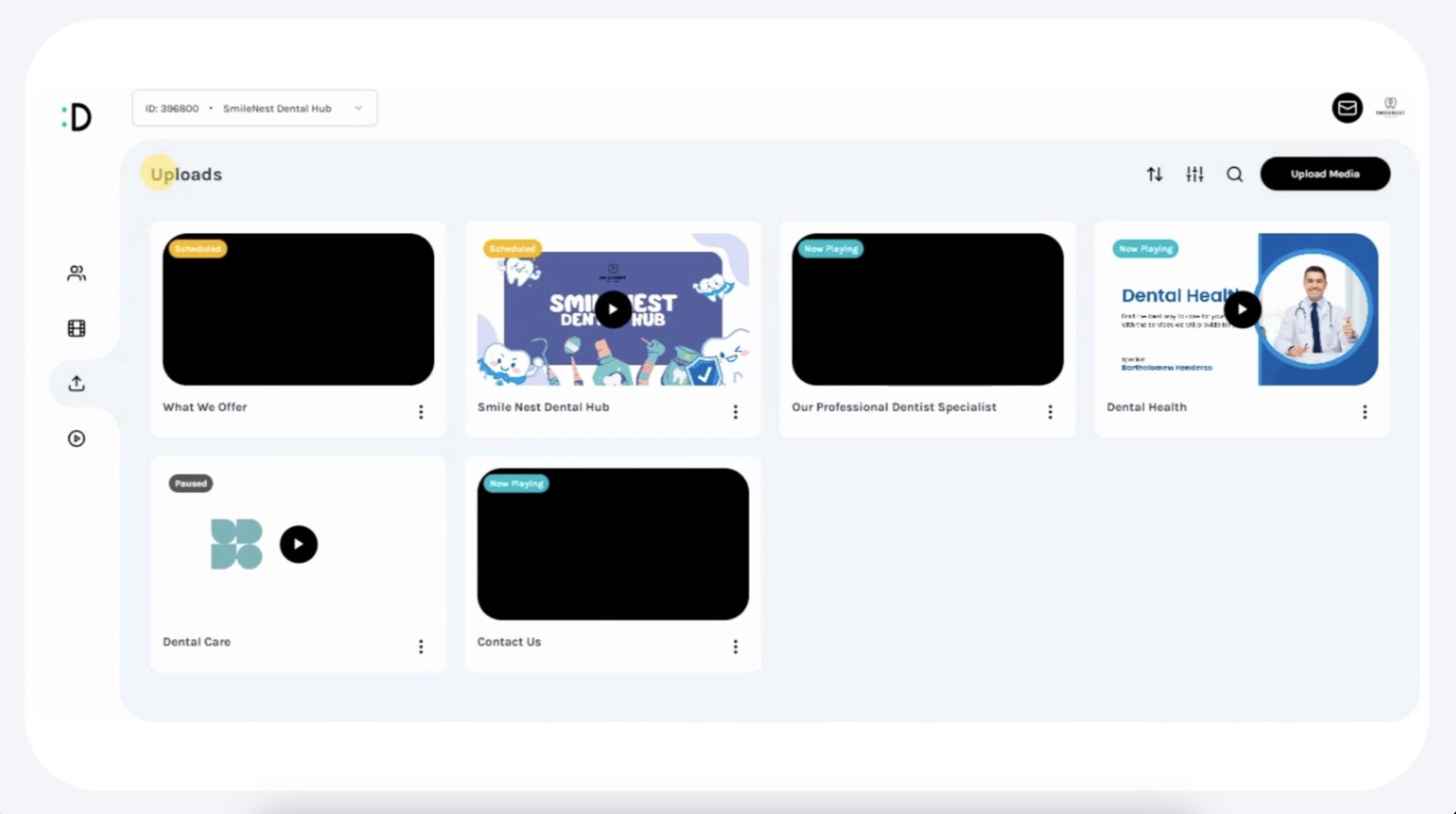
From the left-hand navigation menu, click Uploads.
The Uploads page will display all previously uploaded videos and photos.
Step 3: Start the Upload Process
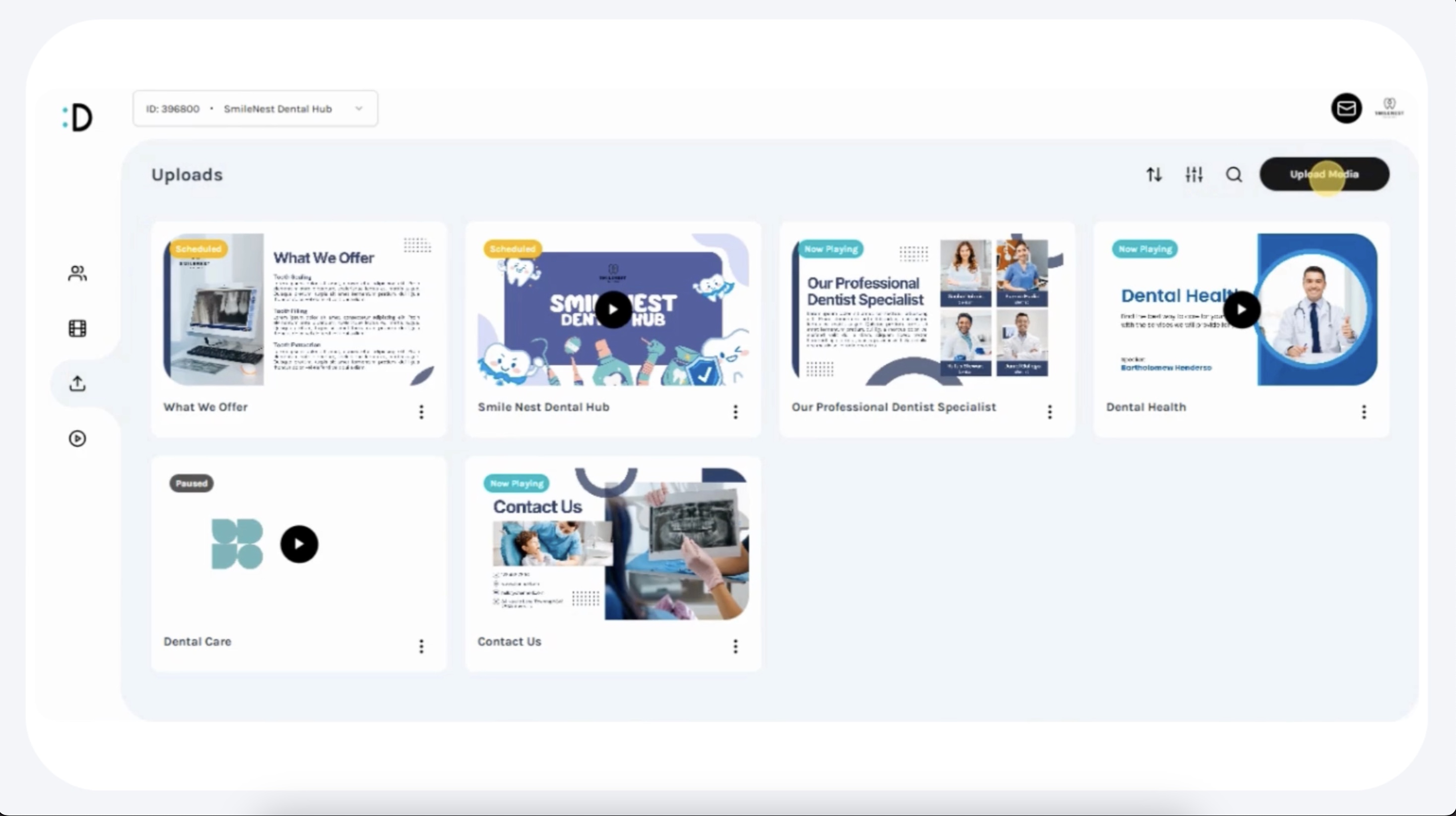
In the upper-right corner, click Upload Media.
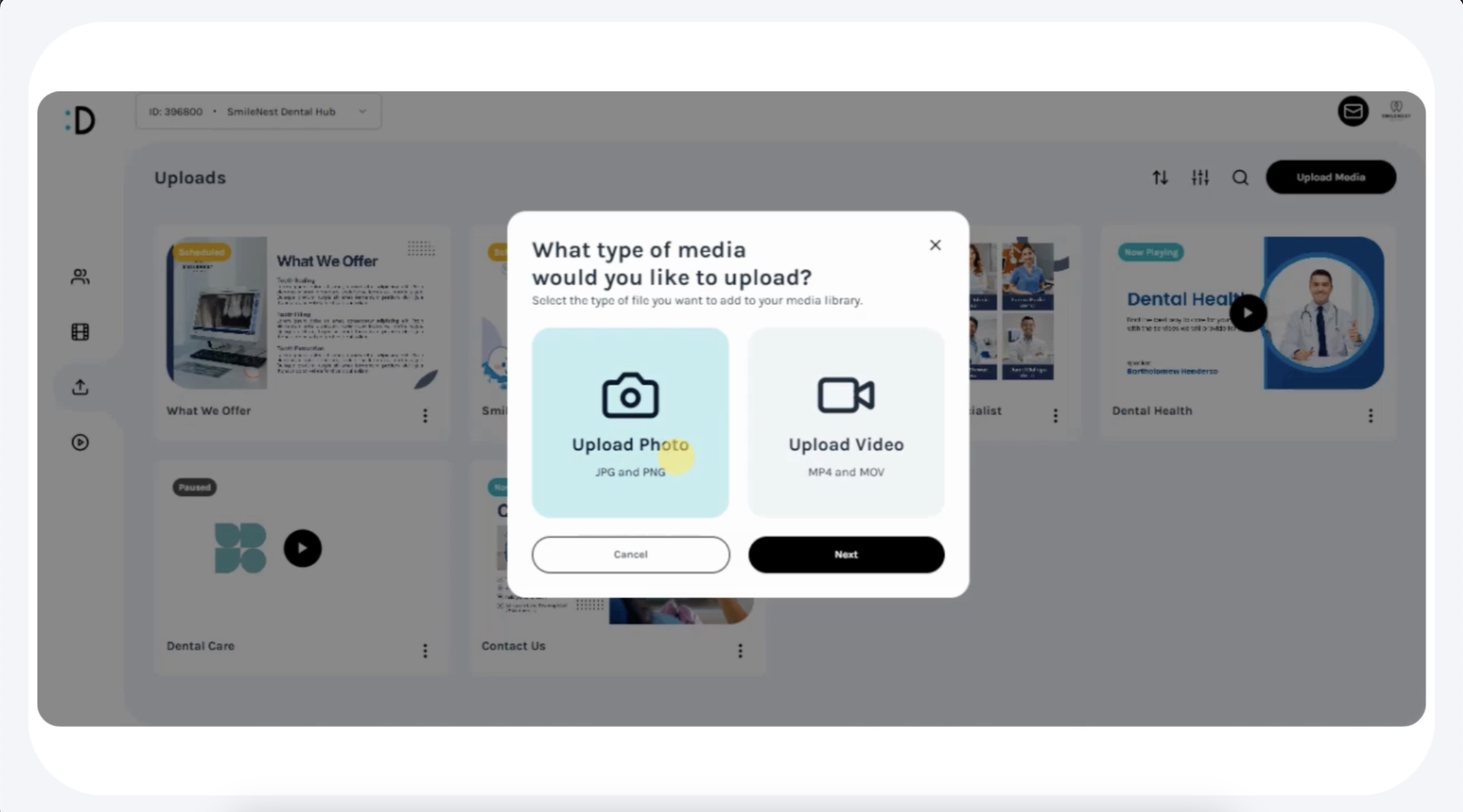
A pop-up window will appear asking you to choose the type of media.
Select Upload Photo.
Step 4: Select and Upload the Photo
A new upload window will open.
Choose one of the following options:
Drag and Drop → Drag your image file directly into the upload box.
Select from Device → Browse your computer or device to select the image file.

Supported formats typically include JPG, PNG, and JPEG.
Wait for the upload to complete.
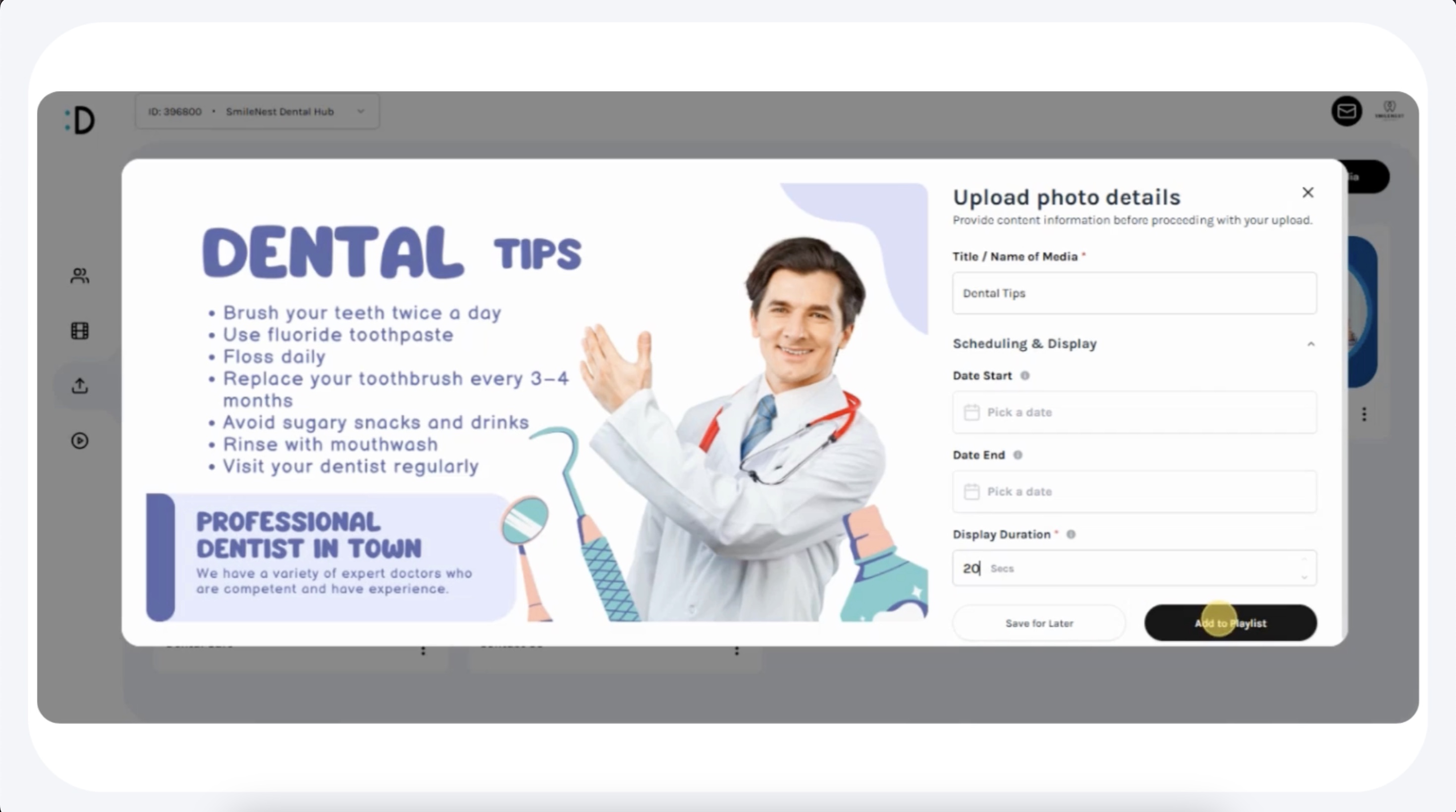
Step 5: Add Photo Details
After uploading, a form will appear.
Enter the following details:
Title → A descriptive label for your photo (e.g., Dental Tips, Clinic Promo).
Display Duration → How long the photo should appear on screen.
Default: 10 seconds (minimum).
Adjustable: Increase duration if more screen time is needed.
(Optional) Schedule the Photo:
Start Date: When the photo should begin displaying.
End Date: When the photo should stop displaying.
Step 6: Choose Publishing Option
Once details are entered, select one of the following:
Add to Playlist → Immediately add the photo to the active playlist.
Save for Later → Store the photo in your Uploads library without publishing it.
Step 7: Confirmation
Once added, Channel D automatically converts the photo into a short video clip based on the display duration you set.
The photo will now appear in the Uploads section.
If added to a playlist, it will also appear under the practice’s active playlist.
Part B: Managing Uploaded Photos
Step 1: Locate the Photo
Go to the Uploads page to see all previously uploaded media.
Step 2: Manage Options
Click the three-dot menu (⋮) on the photo thumbnail to:
Edit → Change title, duration, or scheduling.
Delete → Remove the photo permanently.
Pause → Temporarily remove it from active rotation without deleting.
Part C: Adding Photos to Playlists
Step 1: Access Playlist
From the left-hand menu, click Playlist.
Locate the photo (now converted into a short video) in your Uploads library.
Step 2: Add and Arrange
Drag the uploaded photo into the Now Playing section of your playlist.
Reorder the playlist by dragging media items into the desired sequence.
Click Save Changes, then Confirm to finalize.
Step 3: Verify Playlist
Ensure the photo appears in the active playlist with the correct duration and schedule.
Best Practices
Optimize Image Size: Use high-quality but compressed images to prevent slow playback.
Keep Branding Consistent: Add practice logos or colors to maintain professional presentation.
Use Scheduling: Pre-schedule seasonal campaigns (e.g., holiday promotions) for automated publishing.
Balance Content: Mix photos with videos in playlists for variety and engagement.
Key Notes
Uploaded photos are automatically converted into short video clips for playlist playback.
The minimum display duration is 10 seconds.
Uploads are practice-specific and do not sync automatically with other practices.
Scheduling allows you to control when a photo appears and disappears from the playlist.