How to Organize your Upload Library
Organizing and Managing Your Upload Library in Channel D
Purpose
This SOP provides step-by-step instructions for organizing and managing the Upload Library in Channel D. Proper library organization ensures quick access to photos and videos, efficient playlist management, and a smoother workflow.
Scope
This procedure applies to:
Corporate account holders
Practice administrators
Authorized team members responsible for media management
Procedure
Part A: Finding Media
Step 1: Use the Search Bar
Go to the Uploads page from the left-hand navigation menu.
At the top of the page, locate the Search bar.
Type the title or keyword related to the photo or video you want to find.
Matching results will appear instantly.
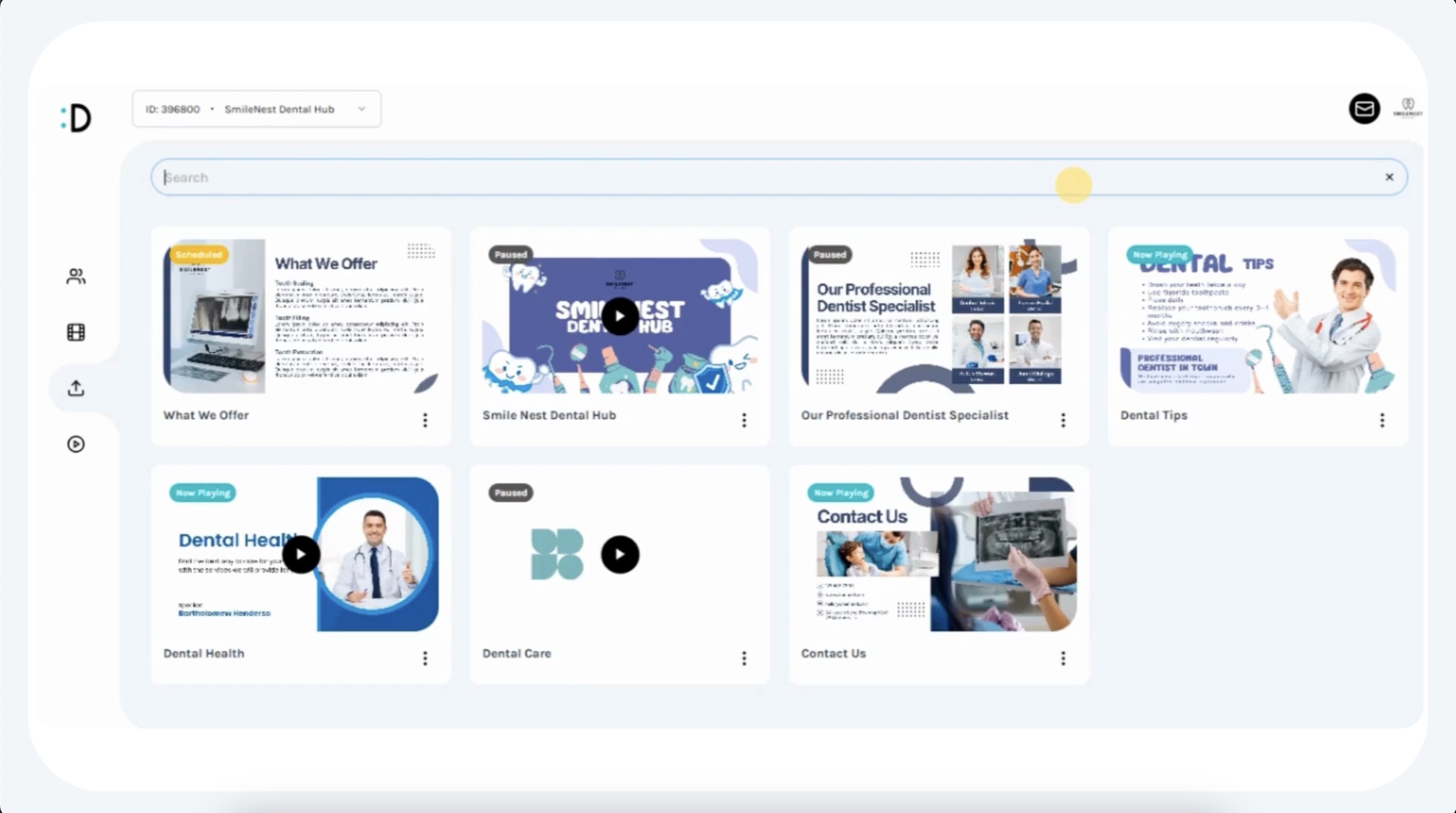
Tip: Use consistent naming conventions (e.g., “Dental Tips – Jan 2025”) to make searching faster.
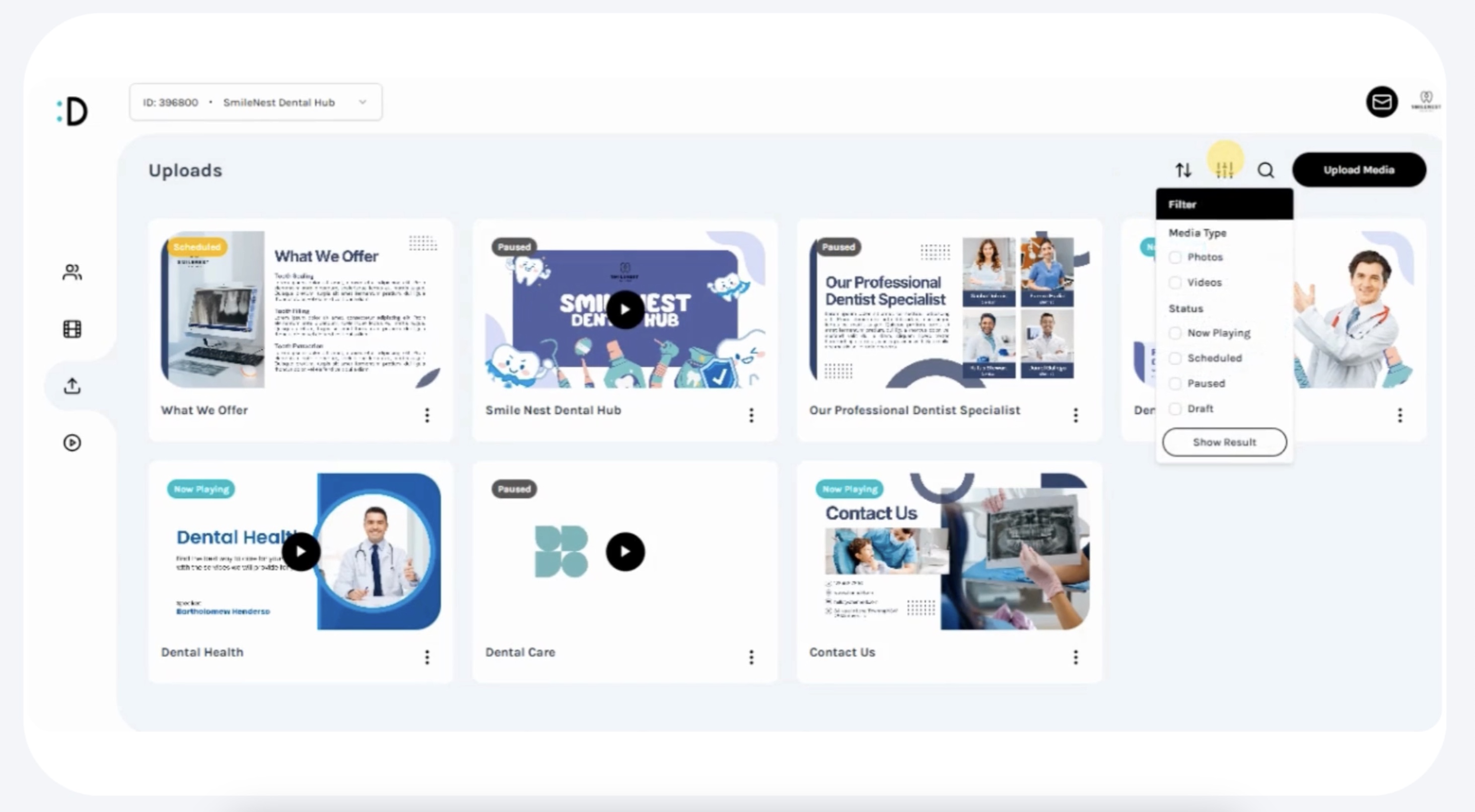
Step 2: Use Filters
In the Uploads page, locate the Filter options.
Filter media by:
Media Type: Choose between Photos or Videos.
Status:
Now Playing → Actively in use in the playlist.
Scheduled → Set to play in the future.
Paused → Temporarily disabled from playback.
Draft → Uploaded but not yet published or added to a playlist.
Step 3: Sort Media
Use the Sort option to organize uploads for easier review.
Sort by:
Name → Alphabetical order (A–Z).
Date → Chronological order (oldest to newest).
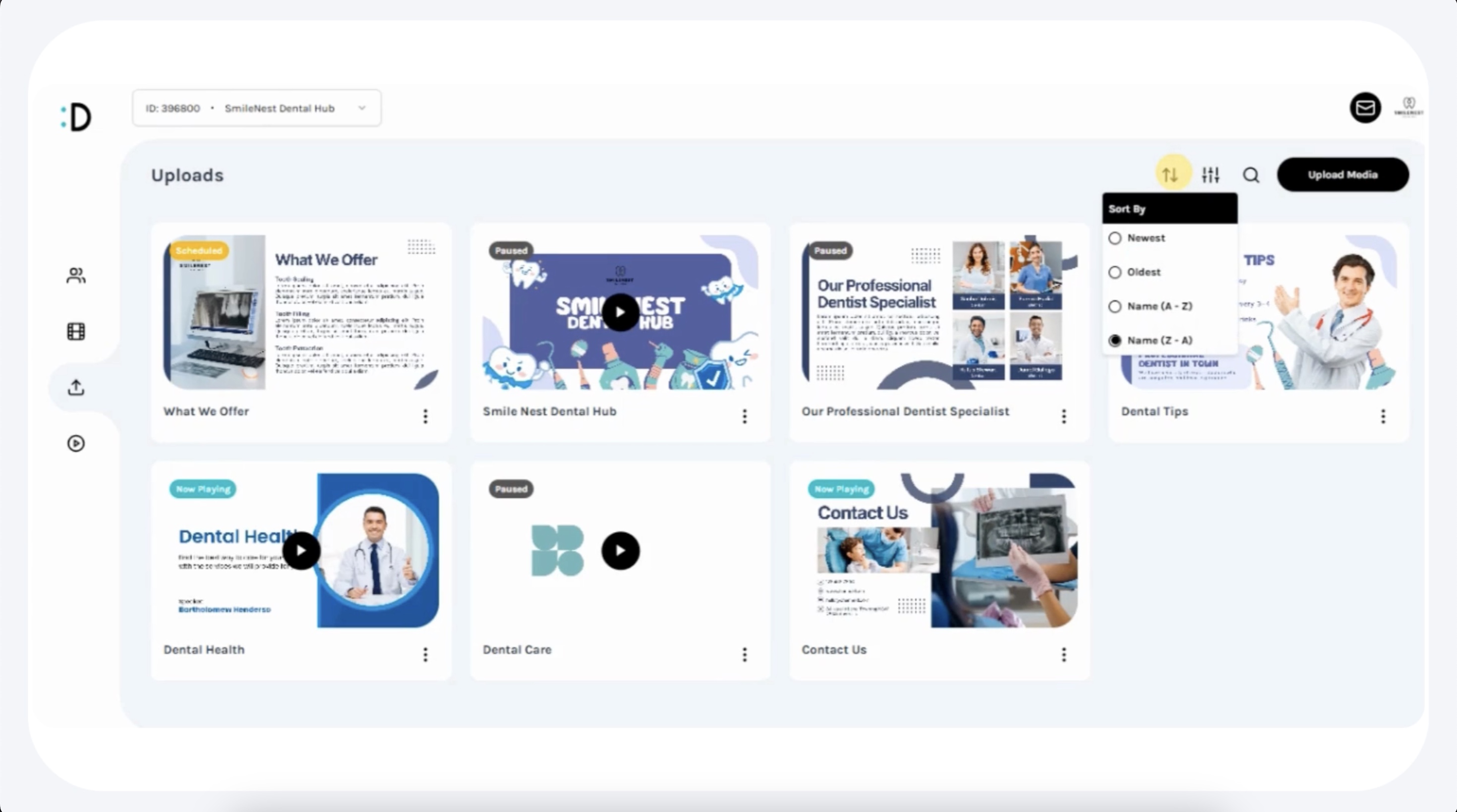
Best Practice: Sort by date to quickly find the latest uploaded content.
Part B: Managing Media Items
Step 1: Access Media Options
On the Uploads page, locate the media item you wish to manage.
Hover over the thumbnail.
Click the three-dot menu (⋮) in the lower-right corner.
Step 2: Manage Media
From the three-dot menu, you can:
Pause → Temporarily remove the item from active rotation without deleting it.
Delete → Permanently remove the item from the library and any playlists.
Edit → Update details such as title, description, duration (photos), or scheduling (photos/videos).

Part C: Playlist Connection
Uploaded media (photos and videos) can also appear in your Playlist section if added there.
To manage placement within the playlist:
Go to Playlist from the left-hand menu.
Drag and drop items to rearrange playback order.
Click Save Changes, then confirm.
The order determines which video or photo plays first during playback.
Note: Removing media from the playlist does not delete it from the Uploads library.
Best Practices
Standardize Naming: Use consistent, descriptive titles for uploads.
Regular Clean-Up: Delete outdated or irrelevant media to keep the library uncluttered.
Use Filters Frequently: Helps quickly locate active vs. scheduled vs. draft content.
Check Playlists After Updates: Always confirm that changes in uploads reflect properly in playlists.
Key Notes
The Upload Library is practice-specific — media is not shared across different practices.
Sorting, filtering, and searching streamline daily content management.
The three-dot menu is the primary tool for editing, pausing, or deleting media.
Playlist management and Upload Library organization work hand-in-hand for smooth content delivery.