How to upload your own (Non-Channel D) videos and add them to your playlist
Purpose
This SOP explains how to upload non-Channel D videos (e.g., custom practice videos, educational content, promotional clips) and add them to playlists for display in Channel D.
Scope
This procedure applies to:
Corporate account holders
Practice administrators
Team members authorized to upload and manage video content
Procedure
Part A: Uploading a Video
Step 1: Log In
Open a browser (Google Chrome recommended).
Go to the Channel D website and sign in with your email address and password.

Once signed in, you will land on your dashboard.
Step 2: Navigate to Uploads
From the left-hand navigation menu, click Uploads.
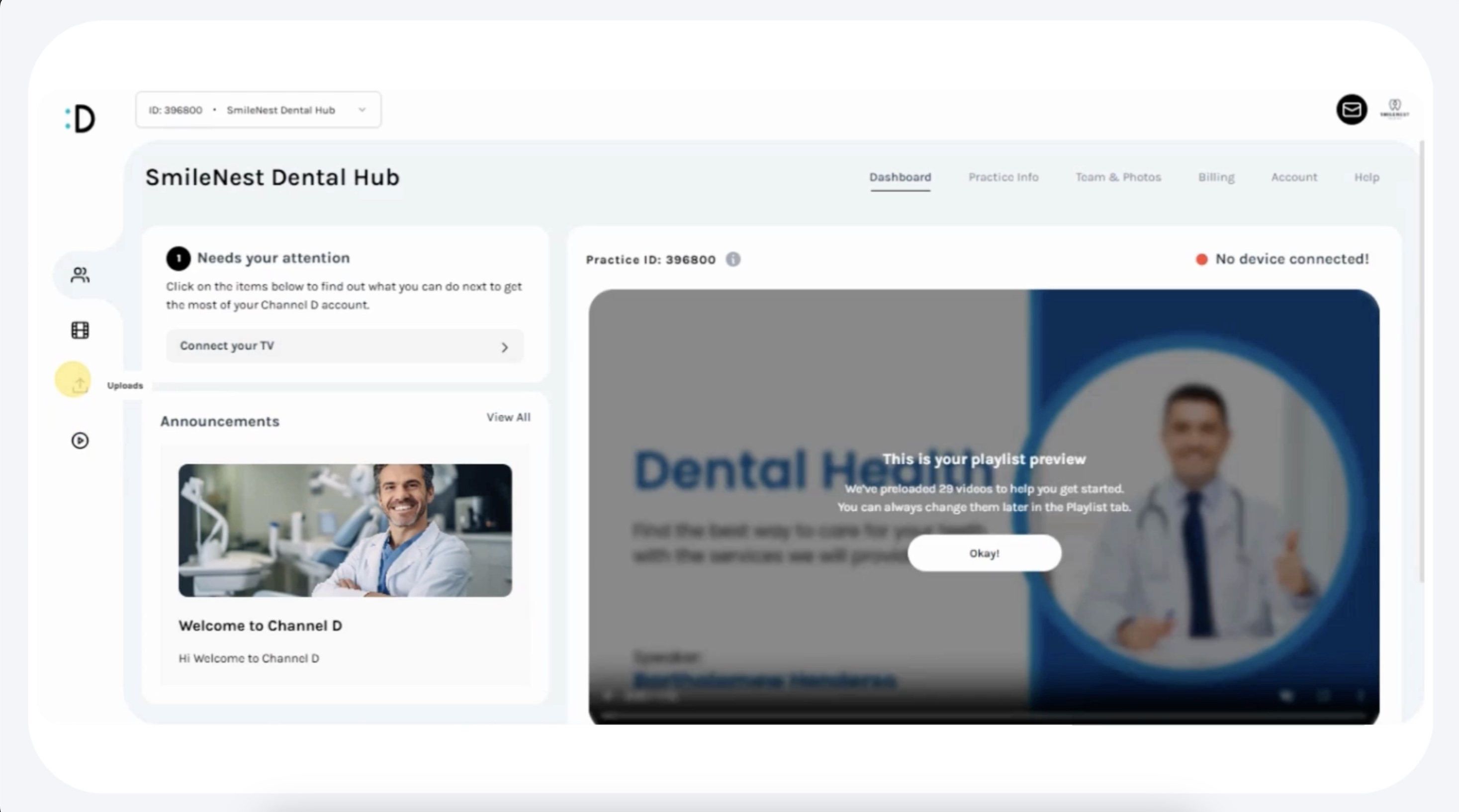
You will be redirected to the Uploads Page, which displays all previously uploaded videos.
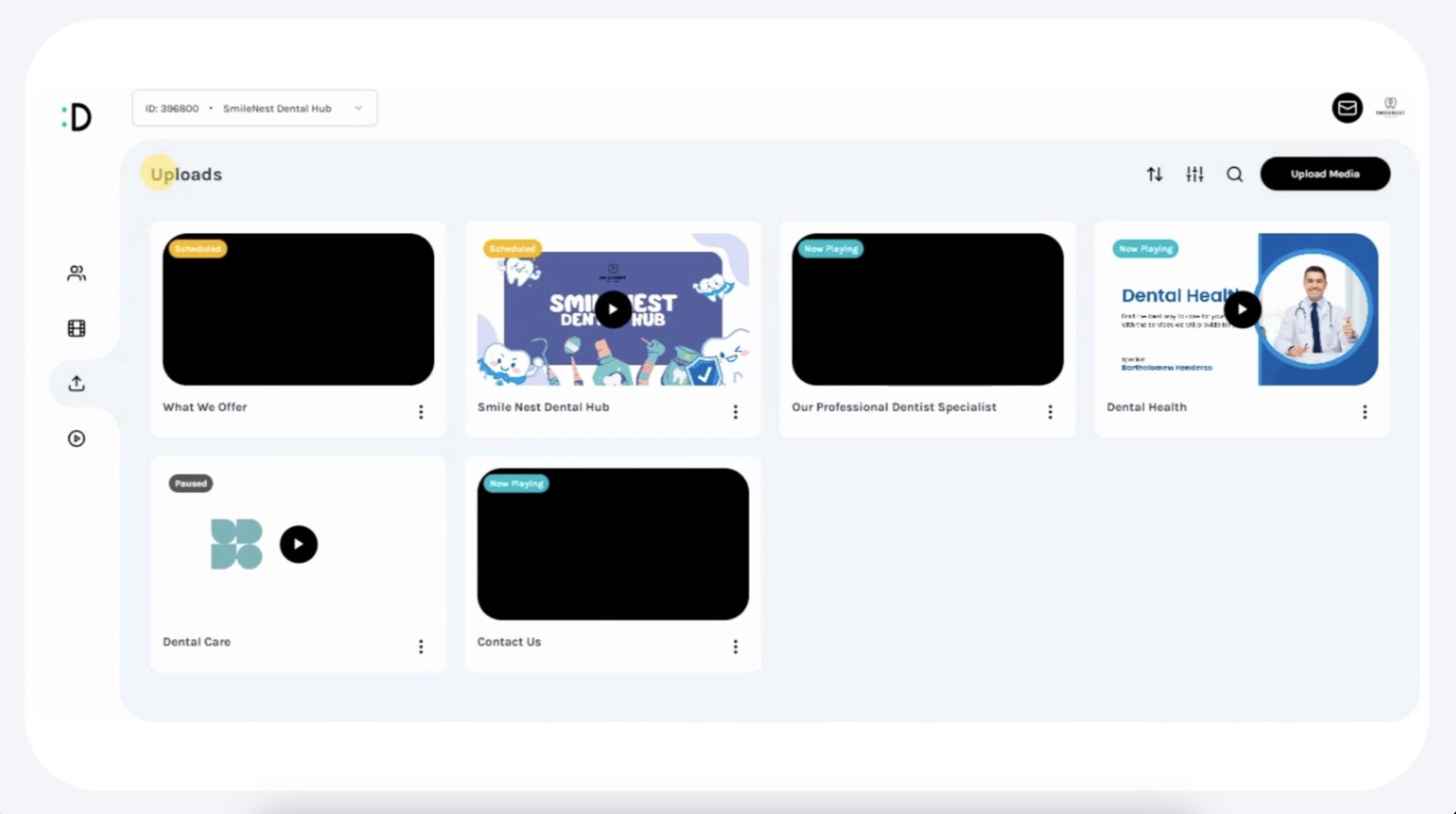
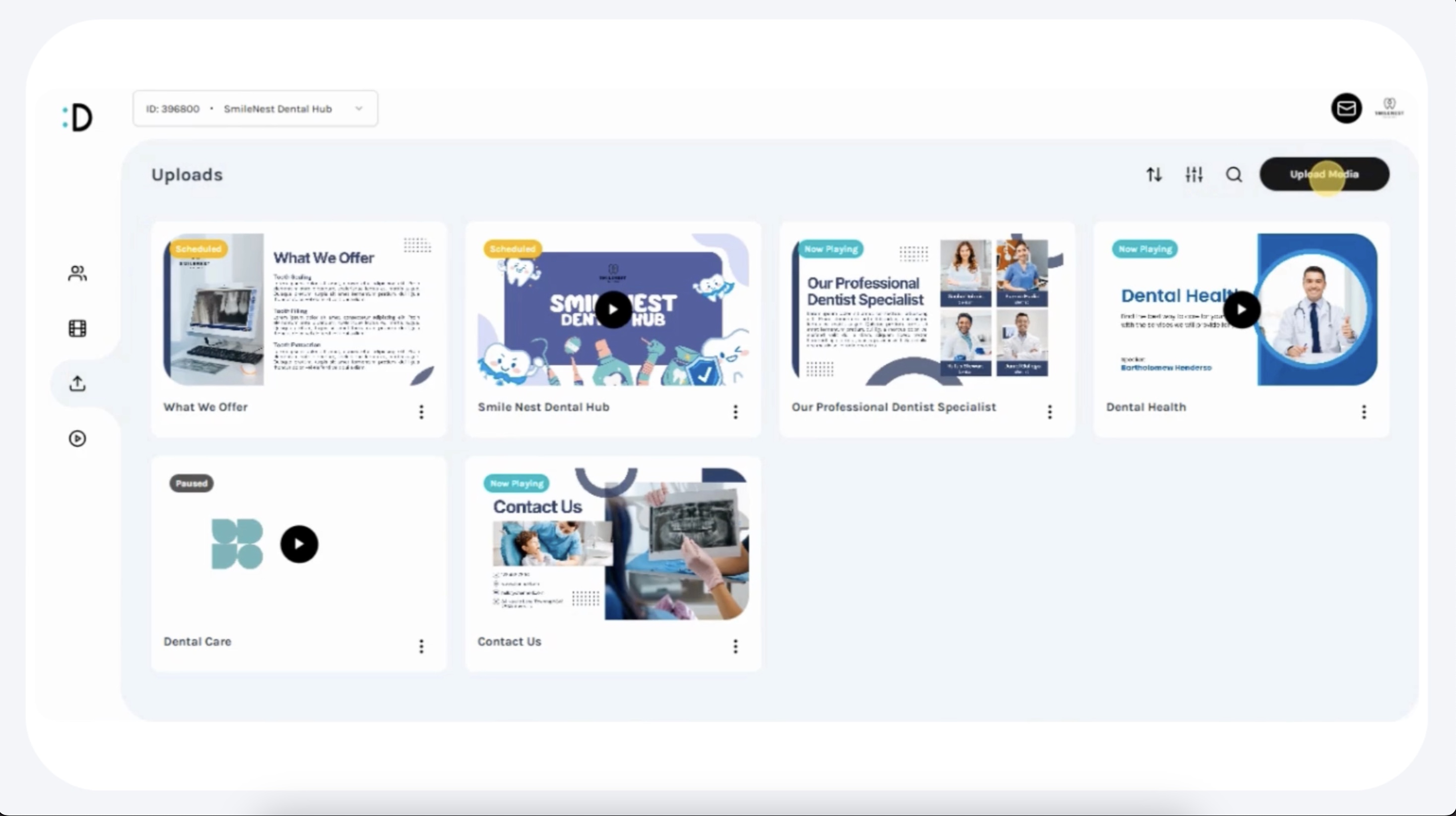
Step 3: Start Uploading
In the upper-right corner of the Uploads page, click Upload Media.
From the pop-up options, select Upload a Video.
Step 4: Select Video File
A file upload window will appear.
You may:
Drag and drop the video file into the upload area, OR
Click “Choose File” to browse your device and select the file.
Supported formats: [insert supported file formats if known, e.g., MP4, MOV].
Wait for the video to upload — progress will be displayed.
Best Practice: Keep video file sizes optimized for smooth playback.
Step 5: Add Video Details
After the upload completes, a details form will appear.
Enter the following information:
Title → e.g., Dental Tips or Practice Introduction.
Description (optional) → add context or notes about the video.
Choose how you want to handle the video:
Add to Playlist → immediately add the video to an active playlist.
Save for Later → store the video in your uploads library without publishing.
Step 6: (Optional) Schedule the Video
To set a specific playback schedule:
Select a Start Date (when the video becomes active).
Select an End Date (when the video should stop playing).
Confirm settings before saving.
Step 7: Confirm Upload
Once finalized, the uploaded video will appear in your Uploads section.
The video will also be visible in Playlists (if added immediately).
Part B: Managing Uploaded Videos
Step 1: Locate Video Tools
On the Uploads page, find the video you want to manage.
Hover over the video thumbnail.
In the lower-right corner, click the three-dot icon (⋮).
Step 2: Manage Options
From the three-dot menu, you can:
Pause → temporarily disable playback without deleting the video.
Delete → permanently remove the video from uploads and playlists.
Edit → update video title, description, or scheduling details.
Step 3: Sort, Filter, and Search
On the top-right corner of the Uploads page, three icons are available:
Sort → arrange videos by date, name, or status.
Filter → display videos by category (e.g., scheduled, active, inactive).
Search → quickly find a specific video by name or keyword.
Part C: Adding Uploaded Videos to Playlists
Step 1: Access Playlist
From the left-hand navigation menu, click Playlist.
Locate the newly uploaded video in your library.
Step 2: Add & Arrange Video
Drag the uploaded video into the Now Playing section of your playlist.
Rearrange playback order by dragging and dropping videos into the preferred sequence.
Click Save Changes, then Confirm.
Step 3: Verify Playlist Update
Ensure the uploaded video appears in the active playlist.
Preview playback order to confirm correct arrangement.
Best Practices
Use clear, descriptive titles for uploaded videos to simplify organization.
Schedule seasonal or campaign-specific videos in advance to automate content management.
Regularly review uploads and remove outdated or irrelevant videos.
Keep videos short and engaging (2–5 minutes recommended).
Key Notes
Uploaded videos are stored in the Uploads library and can be reused in multiple playlists.
Scheduling ensures videos only play during the intended timeframe.
Uploads are practice-specific and do not automatically sync across other practices.