Adding Multiple Practices to a Corporate Account in Channel D
Adding Multiple Practices to a Corporate Account in Channel D
Purpose
This SOP outlines the process for corporate account holders to add and manage multiple dental practices within Channel D.
Scope
Applicable to all corporate account holders who need to create and manage individual practice accounts under one central corporate account.
Responsibilities
Corporate Account Holder: Responsible for creating practices, assigning practice details, and overseeing management.
Practice Admins: Manage their own practice dashboards, playlists, and billing independently.
Step-by-step Procedure:
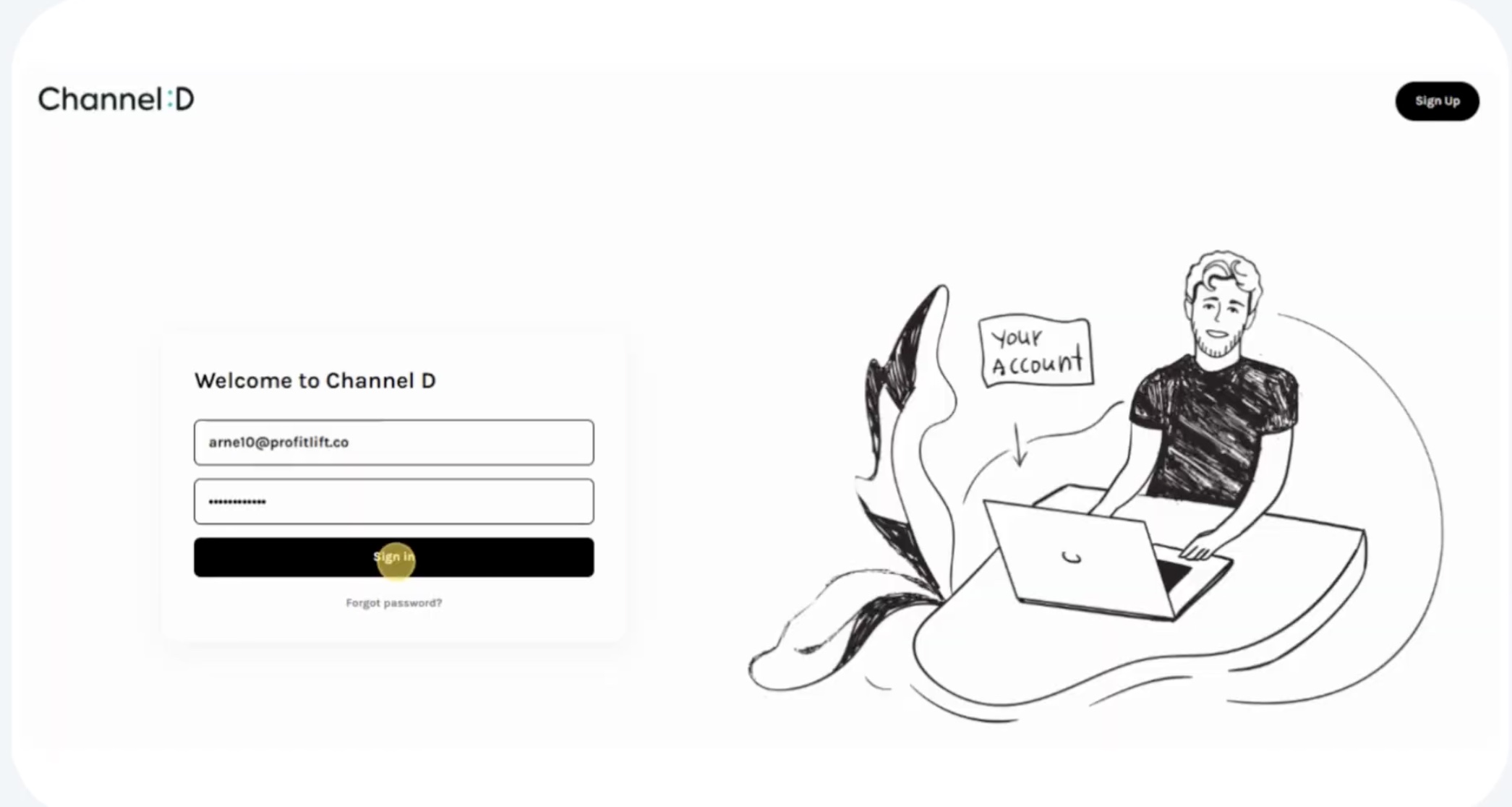
1. Log In
Go to the Channel D website.
Enter your email address and password.

Click Sign In to access your dashboard.
2. Access Practice Management
On the dashboard, locate the drop-down menu in the upper-left corner displaying your current practice name.
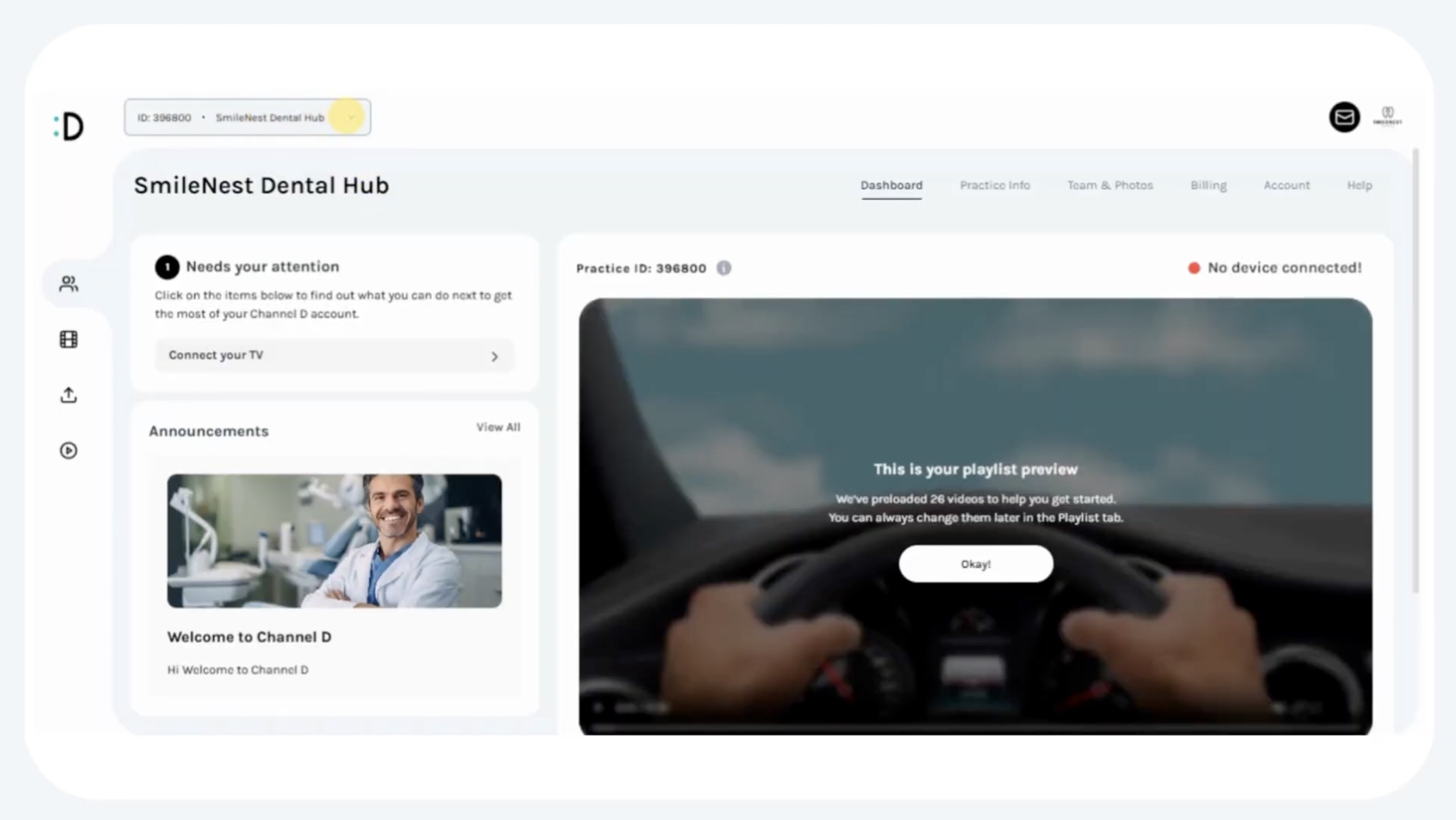
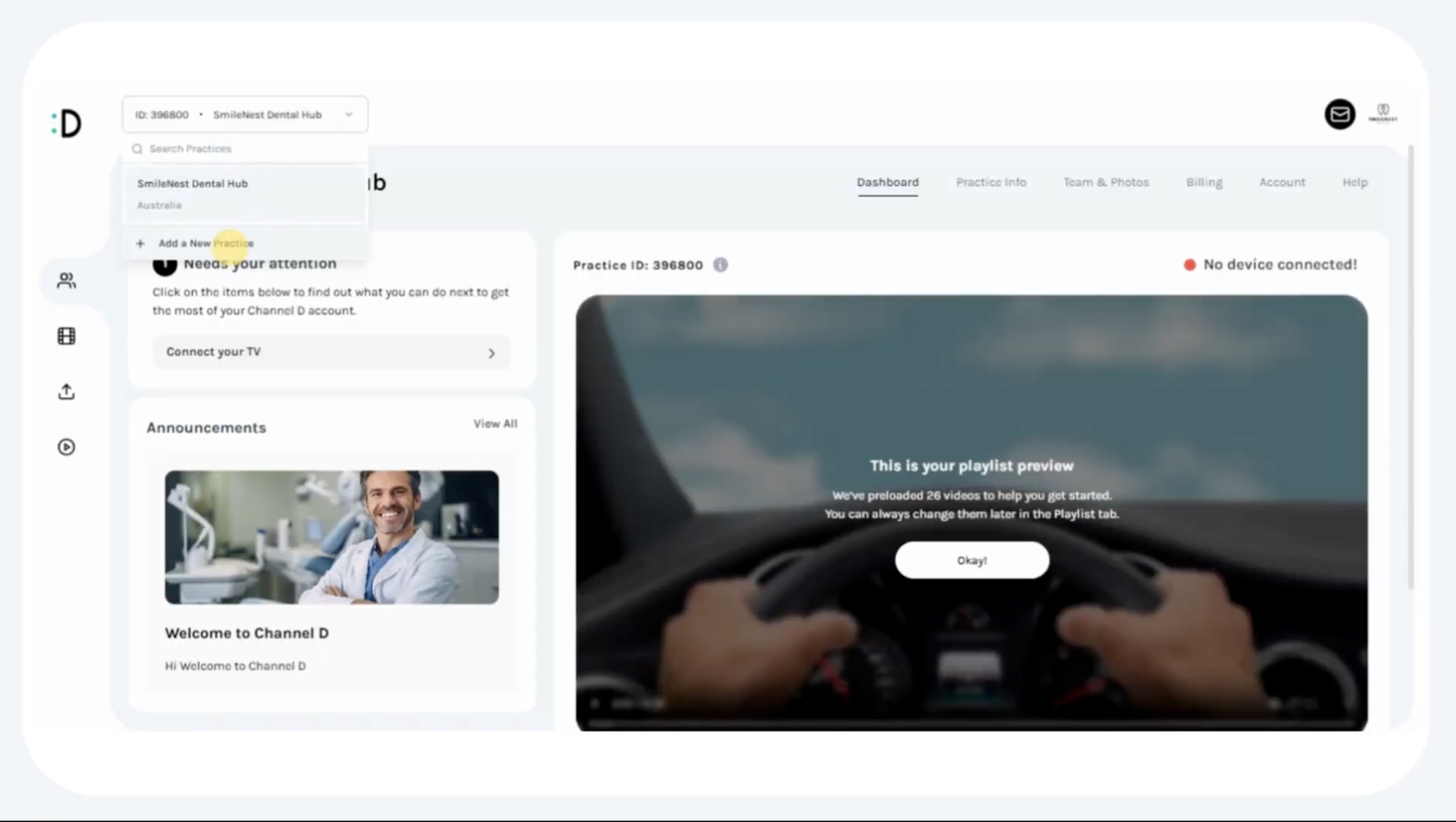
Click the drop-down.
Select Add a New Practice.
3. Add a New Practice
A pop-up form will appear.
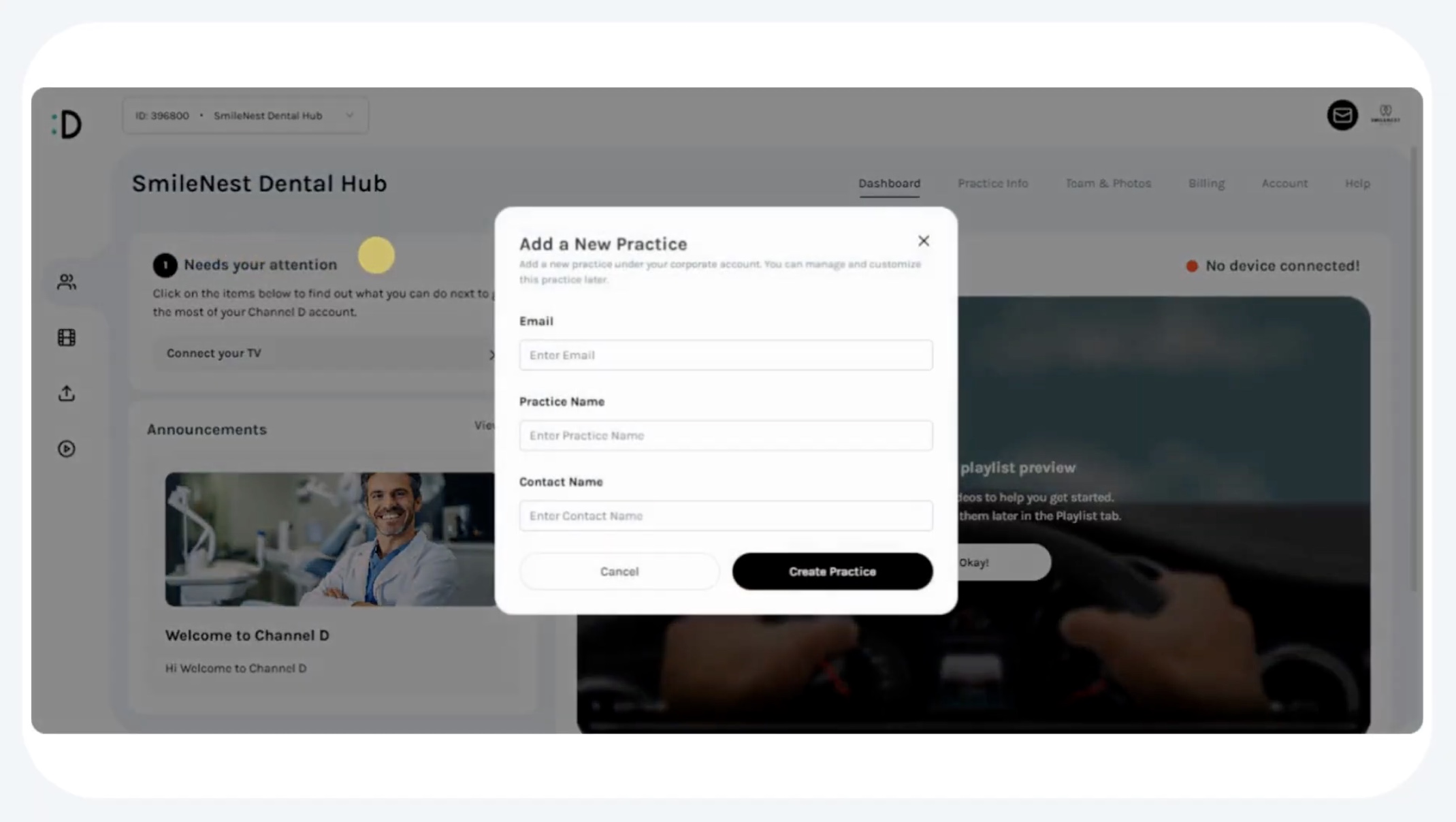
Enter the following required details:
Email Address (for practice login and notifications)
Practice Name
Contact Name (primary contact for that practice)
Click Create Practice.

4. Free Trial & Account Setup
The new practice will automatically begin a 7-day free trial under the corporate account.
Each practice is created as a standalone account, with:
Its own dashboard
Practice info section
Team member management
Billing information
5. Account Independence & Control
Each practice operates independently while remaining under the corporate umbrella.
Corporate account holders retain central oversight of all practices.
Each practice is assigned a unique Practice ID, used to:
Connect devices
Manage content
Playlists are not shared between practices, ensuring each location has a customized video lineup.
Key Notes
Adding a practice does not affect existing accounts.
Corporate oversight ensures visibility across all practices.
Each practice can manage its own billing independently, but the corporate account maintains overall control.